 BurtonSoftware
BurtonSoftware.Ai
WMS Module Manual
Warehouse operations, inbound, outbound, inventory, billing, and reports.
00 Contents
- Burton Software WMS Overview and Product Highlights
- WMS Standard Operating Flow: From Inbound to Outbound
- WMS Inbound and Receiving Schedule Guide
- WMS Outbound Fulfillment and Loading Guide
- WMS Inventory, Locations, and Warehouse Map Guide
- WMS Channel Order Sync and Fulfillment Guide
- WMS Employee Schedule, Time Card, and Work Costing Guide
- WMS Reports, Accounting, Permissions, and Work Costing Guide
- WMS Page Function Index
Burton Software WMS Overview and Product Highlights
A page-by-page summary of Burton Software WMS scope, core objects, recommended use, and product strengths.
01 System Positioning
Burton Software WMS is an execution-focused warehouse management system. It covers inbound scheduling, receiving, devanning labels, inventory, locations, outbound release, picking, labeling, pallet papers, staging, loading, channel order sync, reports, billing, and role-based access.
During the review, 118 internal pages were opened in read-only mode. The menu covers Dashboard, Inbound, Outbound, Warehouse, Inventory, Reports, Accounting, Settings, Sales Order, Work Order, and channel modules such as Etsy, Shopify, Wix, Amazon, Walmart, Wayfair, Big Cartel, and Temu.
02 Product Highlights
- End-to-end warehouse execution: ASN and inbound records flow into inventory, release, picking, labeling, staging, loading, and reporting.
- Multi-warehouse location visibility: Warehouse Map shows zones, racks, available pallet positions, occupancy, and space estimates.
- Marketplace and channel coverage: Shopify, Wix, Amazon, Walmart, Wayfair, Etsy, and other modules centralize orders, inventory, listings, and logs.
- Reporting and billing connection: inbound, outbound, inventory, invoice, labeling, work order, and warehouse cost data can be reviewed by date or customer.
- Permission separation: Settings supports users, function lists, groups, and group permissions for warehouse, customer service, accounting, and supervisors.
03 Core Business Objects
| Object | Purpose |
|---|---|
| Inbound / Rec ID | Receiving record with customer, container, ETA, schedule, SKU, CTN, PCS, and status. |
| SKU / Style / Lot | Product and lot dimensions used for stock, location, labels, and picking. |
| Release / Invoice | Outbound release and invoice records that connect picking, labeling, pallet papers, routing, and staging. |
| Pick / Pallet Paper / Load | Warehouse execution records for picking, pallet handling, staging, and truck loading. |
| Channel Order | Marketplace order that must be synced, reviewed, fulfilled, and confirmed back to the channel. |
04 Recommended Reading Path
- Start from Dashboard to understand daily inbound, outbound, and exception status.
- Read the standard operating flow before using specific inbound or outbound pages.
- Use the inbound, outbound, inventory, channel, and reporting guides based on your role.
- Use the page index when you need to locate a function quickly.
05 Reference Screens
Burton Software WMS system walkthrough
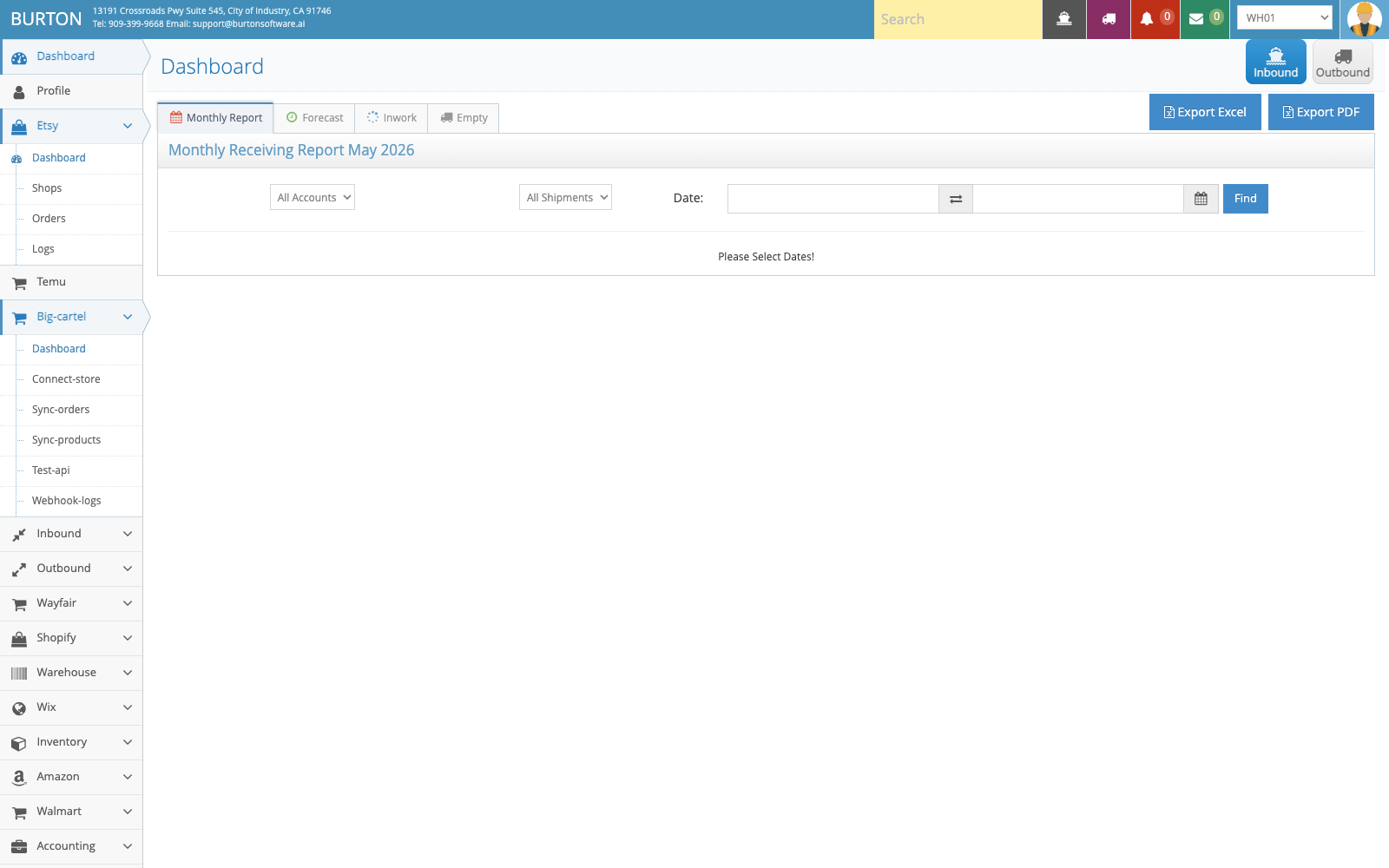
Dashboard provides a quick view of inbound, outbound, forecast, and exception status.
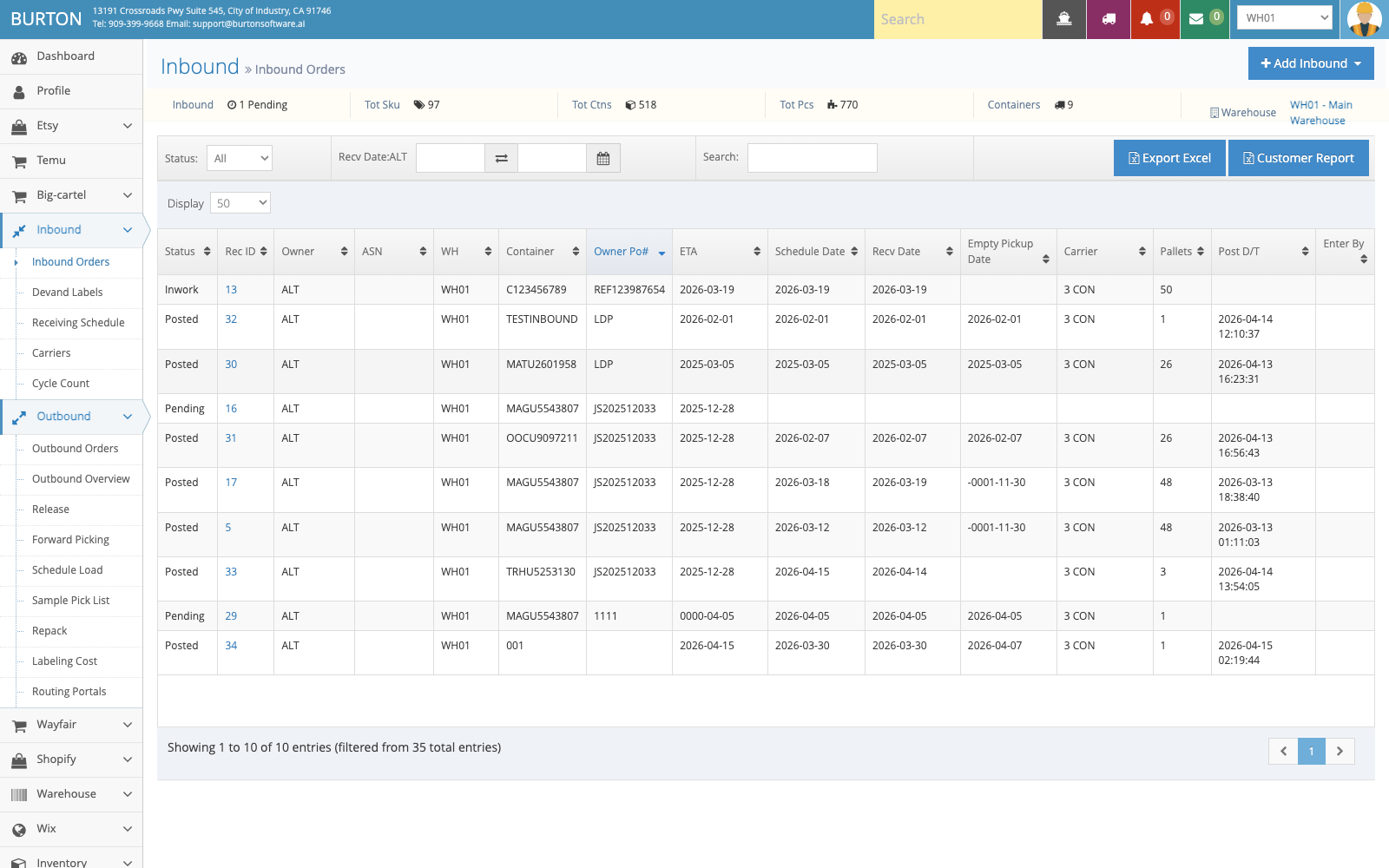
Inbound Orders is the main place to track receiving status by customer, date, container, SKU, and quantity.
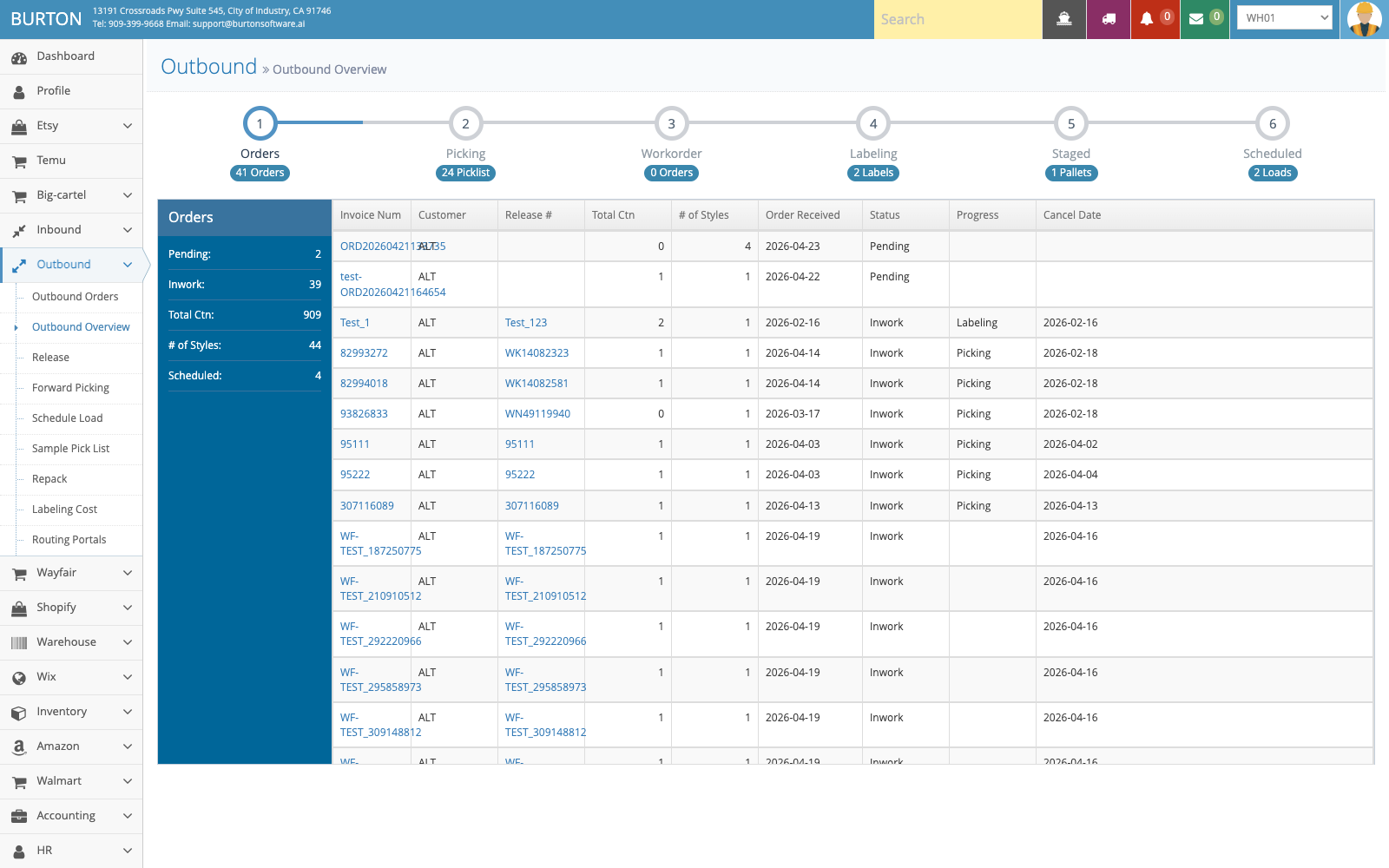
Outbound Overview consolidates order, picking, work order, labeling, staging, and loading progress.
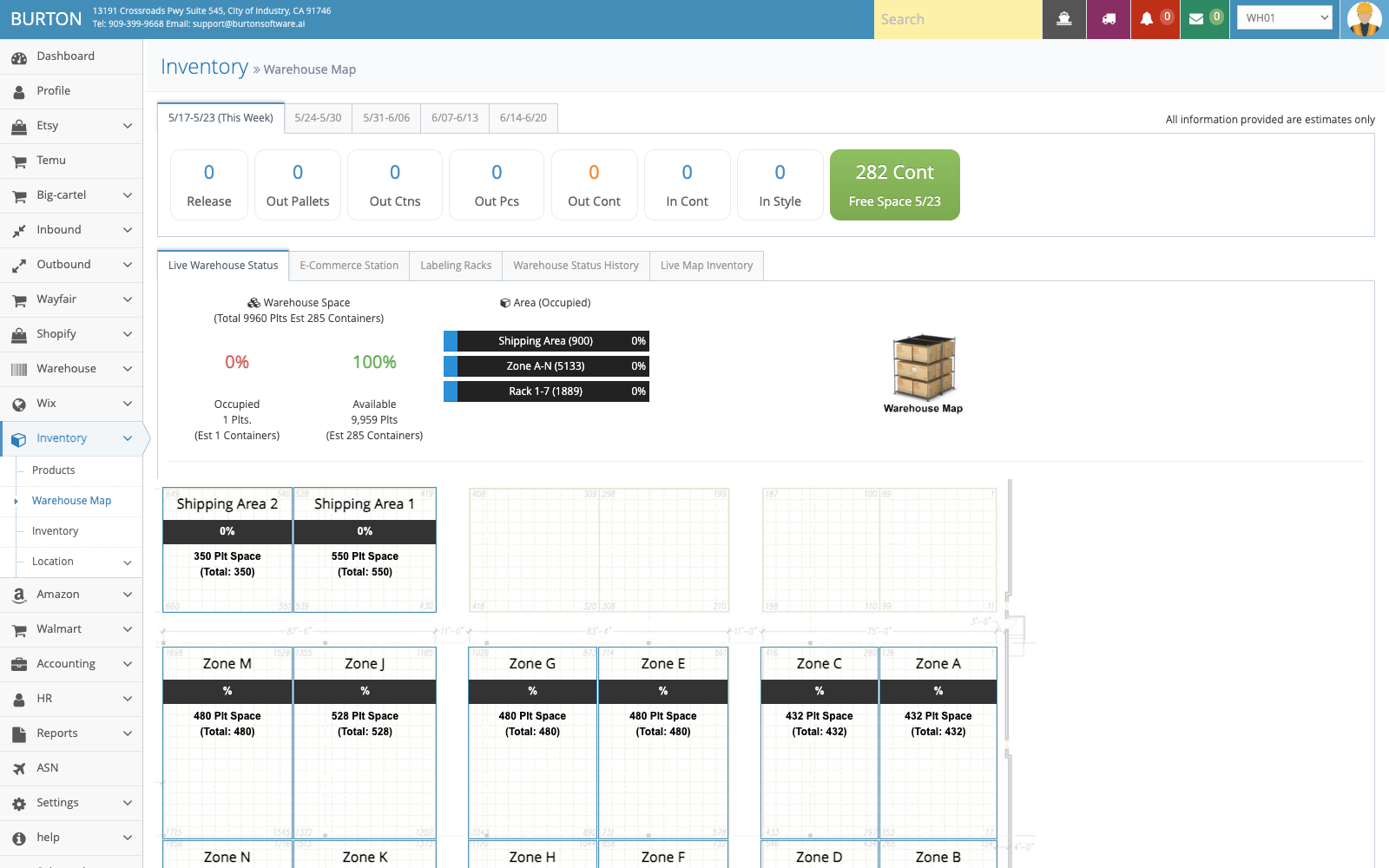
Warehouse Map helps teams review zones, capacity, occupancy, and available storage space.
WMS Standard Operating Flow: From Inbound to Outbound
Standard operating procedure for warehouse users, covering inbound preparation, receiving, outbound fulfillment, and reconciliation.
01 Standard Flow
The Burton Software WMS operating flow starts with inbound and product preparation, moves through receiving and putaway, then fulfills orders through release, picking, labeling, staging, and loading. Reports, invoices, and cost records close the loop.
02 1. Inbound Preparation
- Open Inbound Orders and review Pending, Inwork, Posted, and Revised records.
- Use Add Inbound to create a receiving record with customer, ASN, container, ETA, scheduled date, SKU, CTN, and PCS.
- Use Receiving Schedule in Month, Week, Day, or List view to plan dock capacity.
- Maintain carriers so appointments and receiving records remain traceable.
03 2. Receiving and Putaway
- Receive against the scheduled inbound record and verify SKU, cartons, and pieces.
- Use devanning labels or cycle count tools to generate and verify labels.
- After putaway, review Inventory, Location by Zone/Style/Lot, and Warehouse Map.
- Resolve discrepancies with recounts or relot actions before closing the record.
04 3. Outbound Fulfillment
- Review pending orders in Outbound Orders or channel Orders.
- Use Release and check Print Label, Picking List, Labeling, Pallet Paper, Routing, and Staged status.
- Create and follow pick tasks in Forward Picking.
- Complete labeling, pallet papers, and staging before scheduling load and BOL.
- After shipment, confirm tracking, ASN, or shipment confirmation back to the channel when required.
05 4. Reconciliation and Management
- Use Reports for receiving, monthly receiving, release, shipping, inventory by style, and location reports.
- Use Accounting for invoice records, invoice rules, labeling cost, work order cost, and warehouse cost, and compare HR Time Card and Warehouse Work Log for labor and work-cost review.
- Use Settings to maintain users, groups, and group permissions by role.
06 Checklist
| Stage | Key Checks |
|---|---|
| Before receiving | ETA, scheduled date, customer, container, SKU, CTN, and PCS are complete. |
| After receiving | Labels, locations, lot, and on-hand quantity match the actual receipt. |
| After release | Release status, pick progress, labeling, and pallet papers are complete. |
| Before loading | Staging, load, BOL, carrier, and scheduled date are aligned. |
| After completion | Reports, invoices, costs, and channel confirmations are closed. |
07 Reference Screens
Burton Software WMS system walkthrough
Start each shift from Dashboard to confirm workload and exceptions.
Inbound work starts with accurate receiving records and schedule planning.
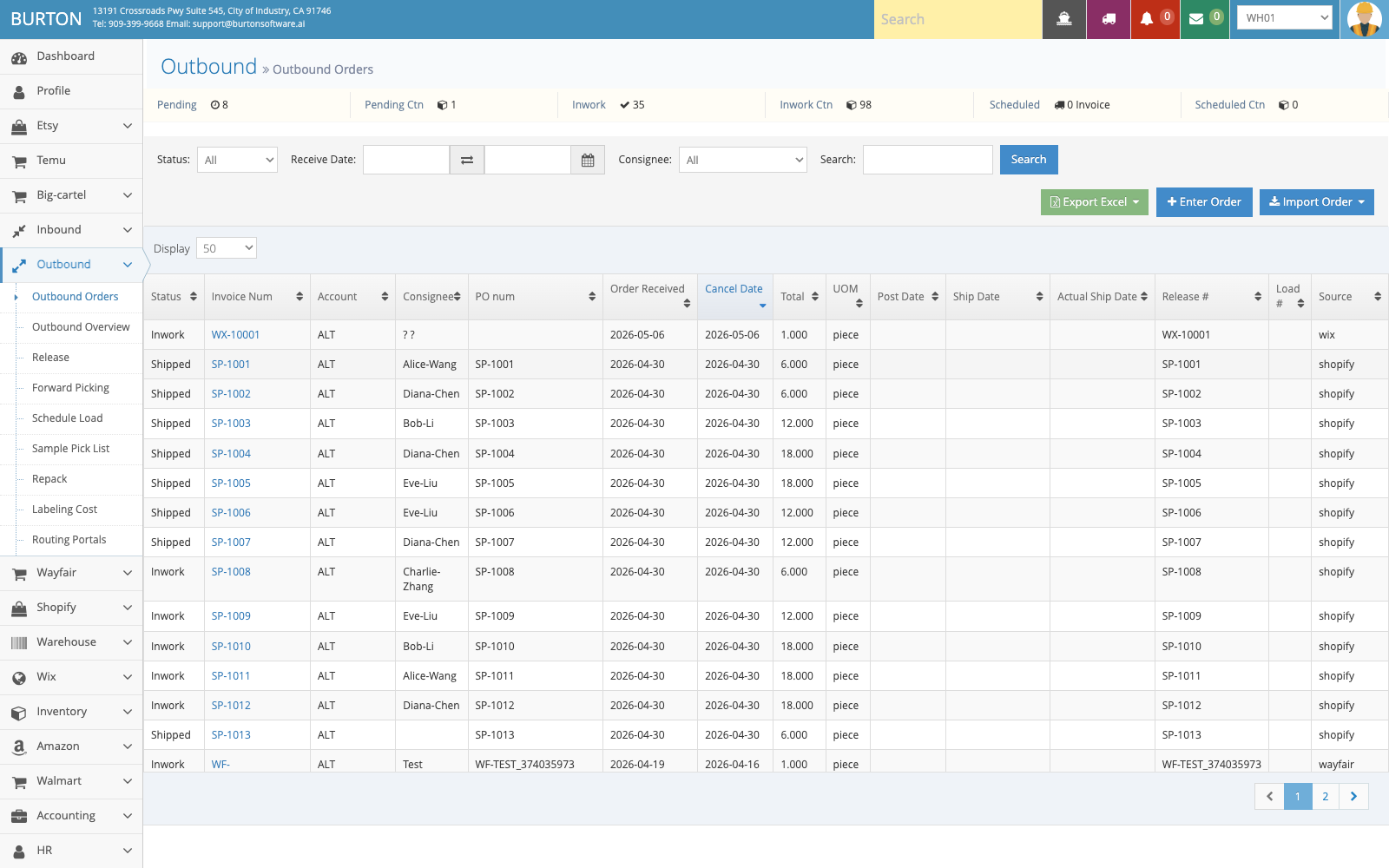
Outbound orders move through release, picking, labeling, staging, and loading.
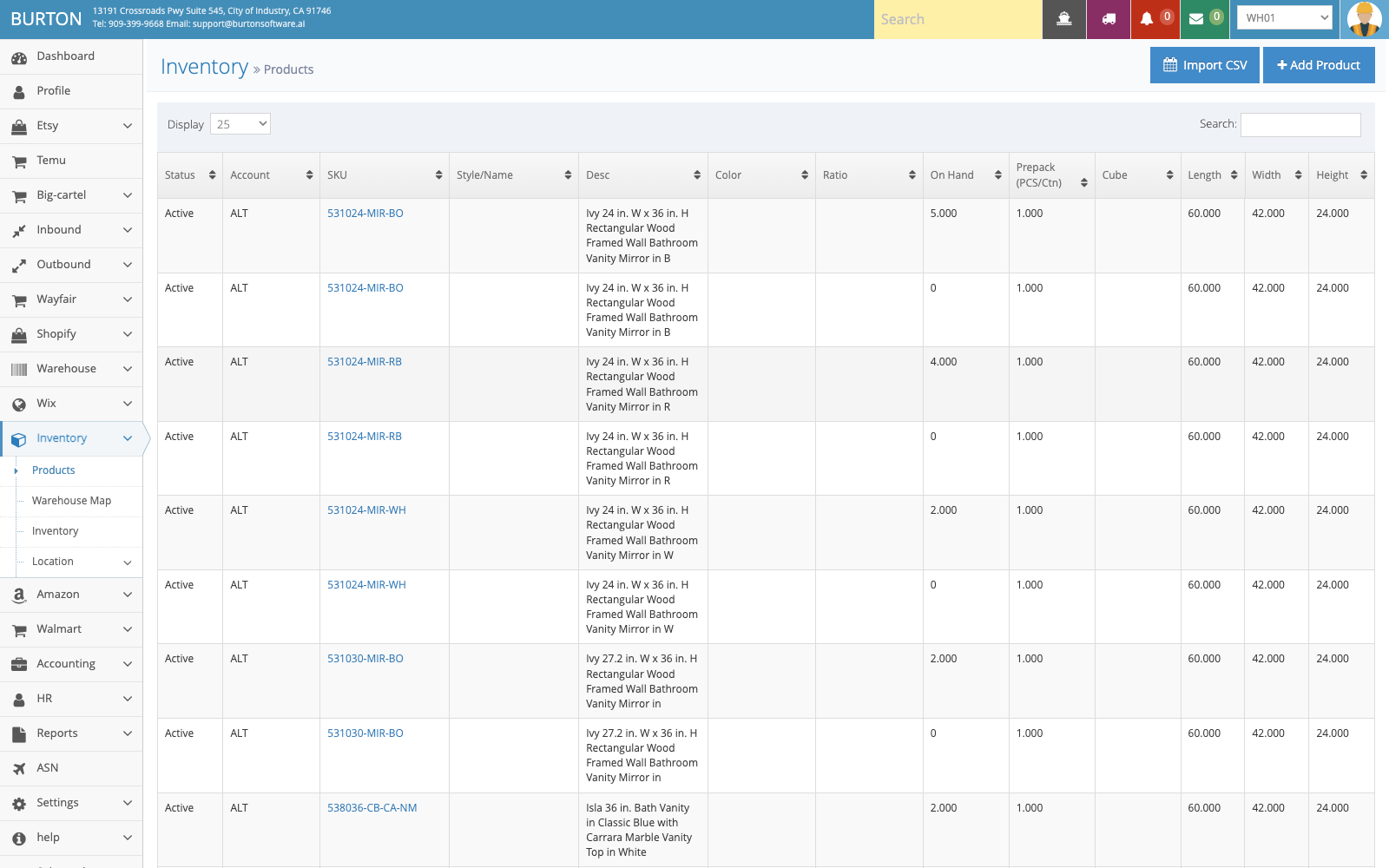
Product and inventory master data support accurate receiving, shipping, reporting, and billing.
Use Warehouse Map to review locations, capacity, and occupancy before closing the workflow.
WMS Inbound and Receiving Schedule Guide
How to use Inbound Orders, Devanning Labels, Receiving Schedule, Carriers, and Cycle Count.
01 Module Scope
The Inbound module manages receiving records, devanning labels, receiving appointments, carriers, and inbound cycle counts. It is the first control point for accurate inventory.
02 Key Pages
| Page | Purpose |
|---|---|
| Inbound Orders | Create, search, and track receiving records by status, customer, container, SKU, CTN, PCS, ETA, and receiving date. |
| Devanning Labels | Review or generate labels for containers, SKUs, lots, quantities, and receiving records. |
| Receiving Schedule | Plan receiving appointments in calendar views and avoid dock capacity conflicts. |
| Carriers | Maintain carrier information used for appointments and transport records. |
| Cycle Count | Support inbound counting, label checks, and discrepancy review. |
03 Standard Inbound Process
- Confirm the customer, warehouse, container, ASN, ETA, SKU list, CTN, and PCS before creating the inbound record.
- Create or update the inbound record in Inbound Orders.
- Schedule the receiving appointment in Receiving Schedule.
- Receive goods against the appointment and verify cartons, pieces, SKU, and labels.
- Use labels and cycle counts to resolve discrepancies before posting.
- After receiving, verify inventory and location status in Inventory and Warehouse Map.
04 Control Points
- Do not post receiving records until quantity and label checks are complete.
- If ETA, scheduled date, or container changes, update the record before warehouse execution starts.
- Keep carrier information consistent for later reporting and customer communication.
- Use cycle count or relot actions for discrepancies instead of manual assumptions.
05 Reference Screens
Inbound Orders helps operations, customer service, and warehouse leads track receiving status, customer, container, and SKU quantity.
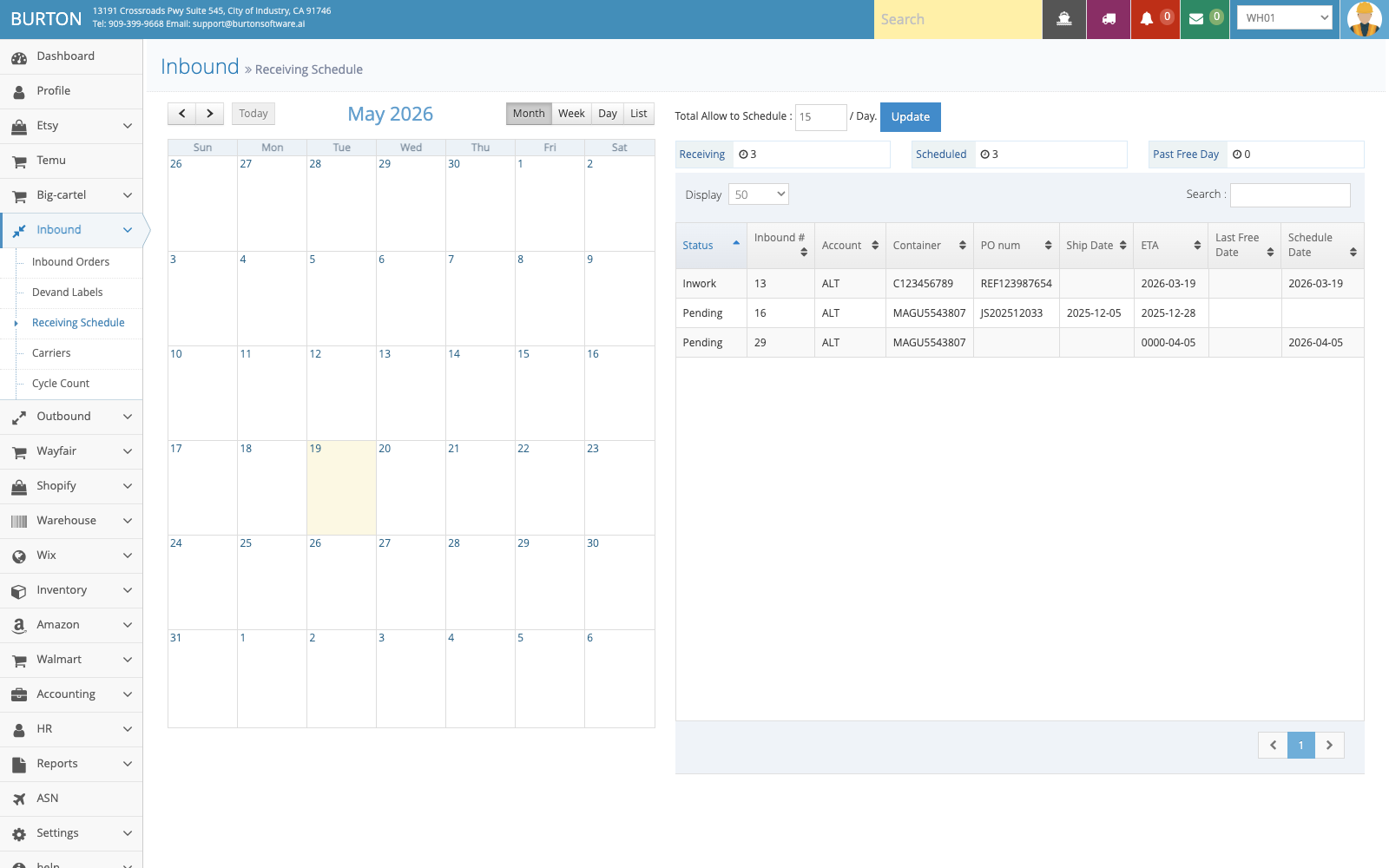
Receiving Schedule supports calendar-based planning so dock and warehouse capacity remain visible.
WMS Outbound Fulfillment and Loading Guide
How to use Outbound Orders, Release, Forward Picking, Pallet Papers, Staging, and Schedule Load.
01 Module Scope
The Outbound module manages order release, picking, labeling, pallet papers, staging, loading, sample picks, repacks, labeling cost, and routing portal information. It is the primary workspace for warehouse fulfillment.
02 Key Pages
| Page | Purpose |
|---|---|
| Outbound Orders | Search outbound orders, filter by status, customer, consignee, receive date, and order information. |
| Outbound Overview | Review progress by order, picking, work order, labeling, staging, and loading stage. |
| Release | Execute release workflow and track print label, picking list, labeling, pallet paper, routing, and staged status. |
| Forward Picking | Create and follow picking tasks by status, cancel date, and keyword. |
| Schedule Load | Plan truck appointments, loading, BOL, and load status. |
| Staging / Pallet Papers | Verify pallets, release records, quantity, location, and staged status before loading. |
03 Standard Outbound Process
- Confirm the order is ready for warehouse execution in Outbound Orders or channel Orders.
- Create or review Release and make sure required labels and documents are ready.
- Create or follow picking tasks in Forward Picking.
- Complete labeling, repack, pallet papers, and staging checks.
- Schedule load, confirm BOL, carrier, and pickup or ship date.
- After loading, confirm shipment or ASN back to the channel when required.
04 Control Points
- Do not load before staging, pallet, quantity, and release status are verified.
- Use Outbound Overview to catch delayed picking, labeling, or staging work.
- Keep route, carrier, and BOL information aligned with customer and channel requirements.
- Export or print only the required warehouse documents to avoid duplicate execution.
05 Reference Screens
Outbound Orders is used to query pending orders, customers, consignees, schedules, and import status.
Outbound Overview helps supervisors track release, picking, labeling, staging, and loading phases.
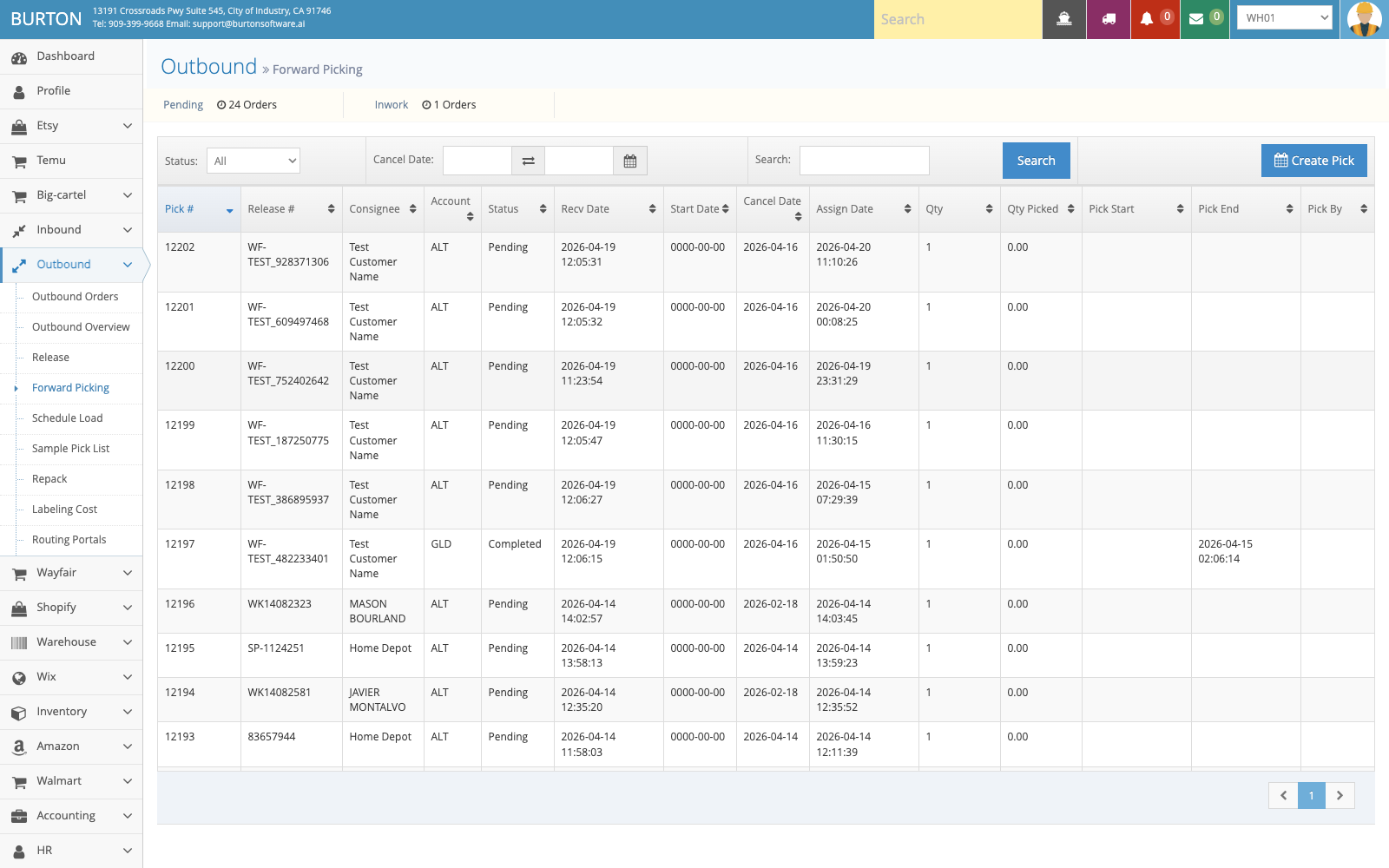
Forward Picking is used to create and track pick tasks and reduce missed or incorrect picks.
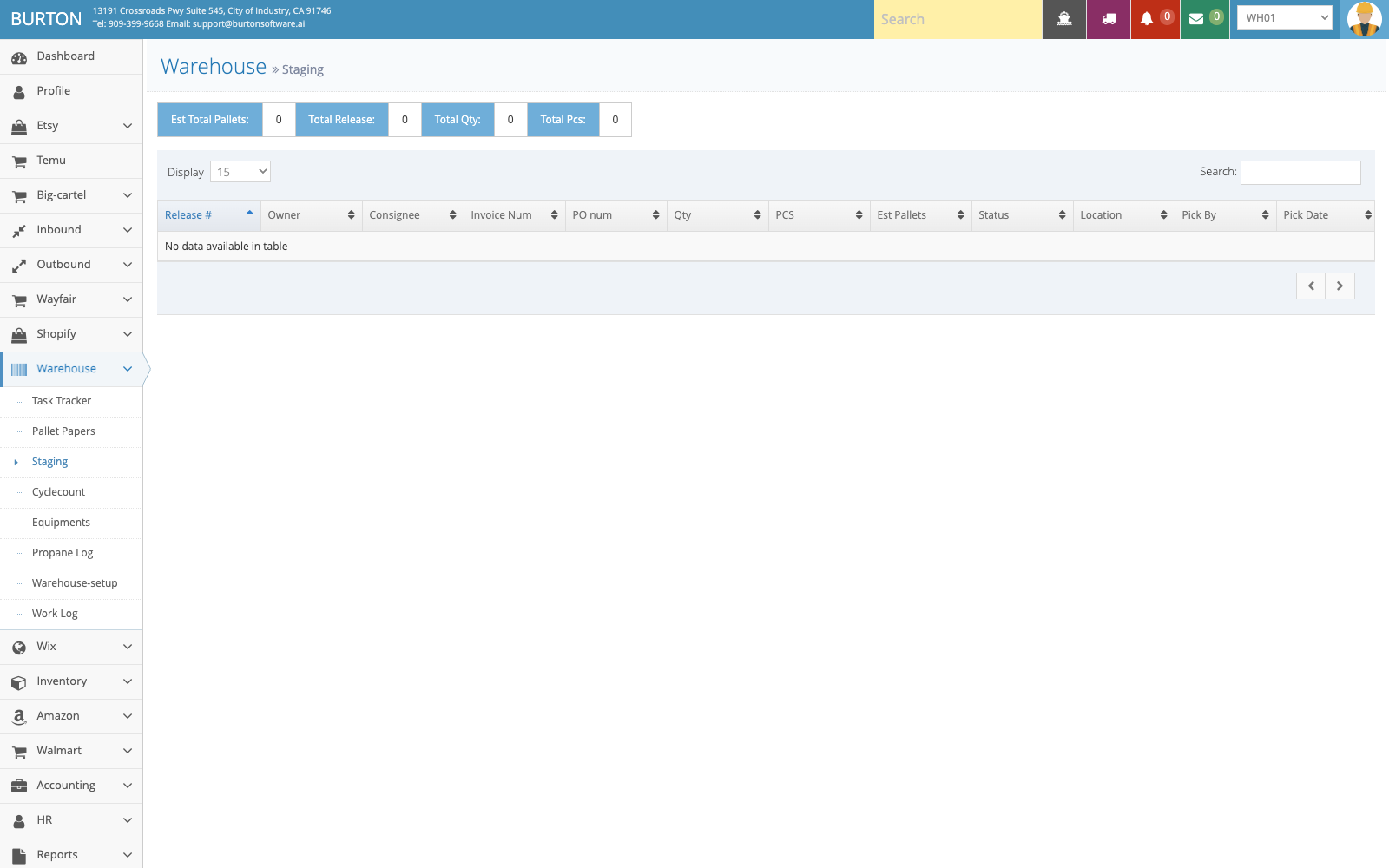
Staging verifies release, pallet, quantity, and staging location before loading.
WMS Inventory, Locations, and Warehouse Map Guide
How to manage product master data, inventory lookup, location views, Warehouse Map, and warehouse work logs.
01 Module Scope
Inventory and Warehouse modules manage product master data, stock lookup, locations, warehouse map, task tracking, pallet papers, staging, cycle counts, equipment, propane logs, warehouse setup, and work logs.
02 Inventory Pages
| Page | Purpose |
|---|---|
| Products | Maintain SKU, style, description, dimensions, cube, prepack, and on-hand information. |
| Inventory | Review on-hand, available, reserved, received date, and inventory status. |
| Warehouse Map | View warehouse zones, racks, capacity, occupancy, and available pallet positions. |
| Location by Zone / Style / Lot | Review stock by location, style, lot, and zone. |
03 Warehouse Pages
| Page | Purpose |
|---|---|
| Task Tracker | Track warehouse tasks by employee and time period. |
| Pallet Papers | Review pallet paper, release number, picker, location, and staged status. |
| Staging | Verify staged release records, pallets, quantities, and locations. |
| Warehouse Setup | Maintain warehouse code, address, coordinates, timezone, capacity, and active status. |
| Work Log / Equipment / Propane | Track operational logs, equipment, propane, and supporting warehouse records. |
04 Recommended Inventory Workflow
- Keep SKU and product master data consistent before receiving or shipping.
- Use Inventory and Location views to confirm on-hand, available, reserved, and location data.
- Use Warehouse Map to understand space constraints and occupancy before large receipts or releases.
- Use Task Tracker and Work Log to review labor activity and warehouse execution history.
- Use cycle count or location correction workflows when stock does not match the physical warehouse.
05 Risk Controls
- A wrong SKU, lot, or location affects receiving, picking, reporting, and billing.
- Warehouse Map should be reviewed before large inbound appointments or outbound waves.
- Location changes should be traceable and preferably connected to a task, count, or work log.
06 Reference Screens
Products maintains SKU, style, dimensions, cube, prepack, and inventory information.
Warehouse Map shows capacity, occupancy, and available space by zone and rack.
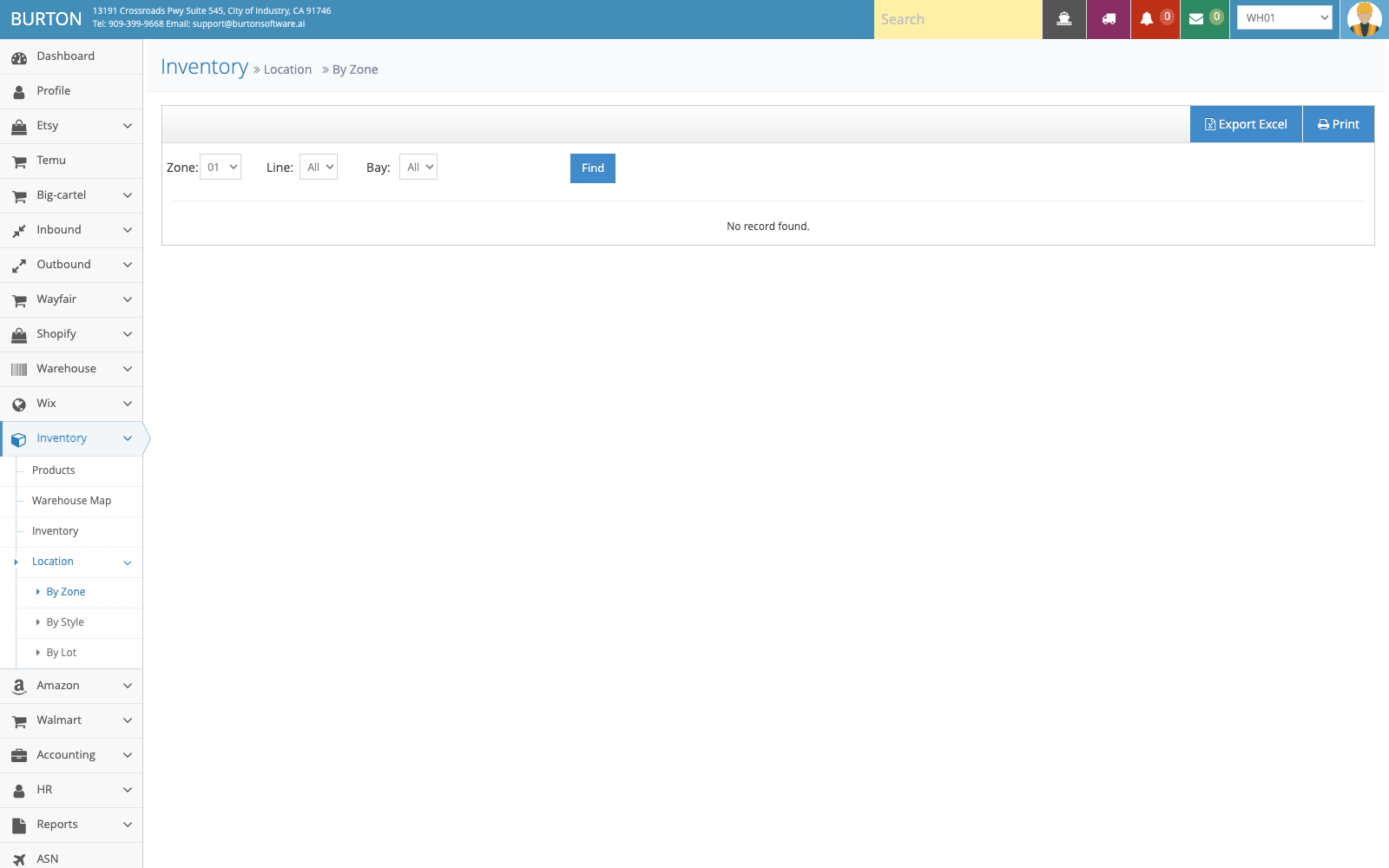
Location by Zone helps teams review SKU, lot, quantity, and location distribution.
WMS Channel Order Sync and Fulfillment Guide
How Shopify, Wix, Amazon, Walmart, Wayfair, Etsy, Big Cartel, and Temu orders enter warehouse execution.
01 Module Scope
Burton Software WMS includes channel modules that bring marketplace orders, products, inventory, shipment status, and API logs into the warehouse execution flow. Reviewed channels include Etsy, Shopify, Wix, Amazon, Walmart, Wayfair, Big Cartel, and Temu.
02 Channel Capability Map
| Channel | Pages | Main Capabilities |
|---|---|---|
| Shopify | Dashboard / Shops / Orders / Logs / Settings | Store connection, order sync, tracking update, logs, and settings. |
| Wix | Dashboard / Shops / Orders / Products / Inventory / Logs | Store, order, product, inventory, and API log management. |
| Amazon | Dashboard / Accounts / Orders / Listings / Inventory / Logs / Settings | SP-API accounts, orders, listings, FBA or inventory data, shipment confirmation, and logs. |
| Walmart | Dashboard / Accounts / Orders / Listings / Inventory / Logs / Settings | Seller API account, order pulling, listings, inventory, and shipment confirmation. |
| Wayfair | Orders | Pull Orders, pickup registration, label download, Ship ASN, and UCC128. |
| Etsy | Dashboard / Shops / Orders / Logs | OAuth store connection, order sync, WMS sync, and logs. |
| Big Cartel / Temu | Connect / Sync / Test / Webhook | Channel connection, order or product sync, API test, and webhook logs. |
03 Channel Fulfillment Flow
- Check connection status, last sync time, order volume, and failures in the channel Dashboard.
- Filter orders by status or keyword in Orders. Use manual Sync or Pull Orders only when needed.
- After the order syncs into WMS, continue warehouse execution in Outbound or Release.
- After picking, labeling, staging, and loading, send tracking, ASN, or shipment confirmation back to the channel.
- If sync fails, check Logs first, then Settings or Accounts for token, client ID, warehouse ID, carrier, and permission issues.
04 Risk Controls
- Disconnect, Revoke, Re-auth, and Save Settings can affect live channel connections and should be limited to admins.
- Confirm WMS Available inventory before syncing stock to a marketplace.
- API logs may include request details and should not be shared publicly without review.
05 Reference Screens
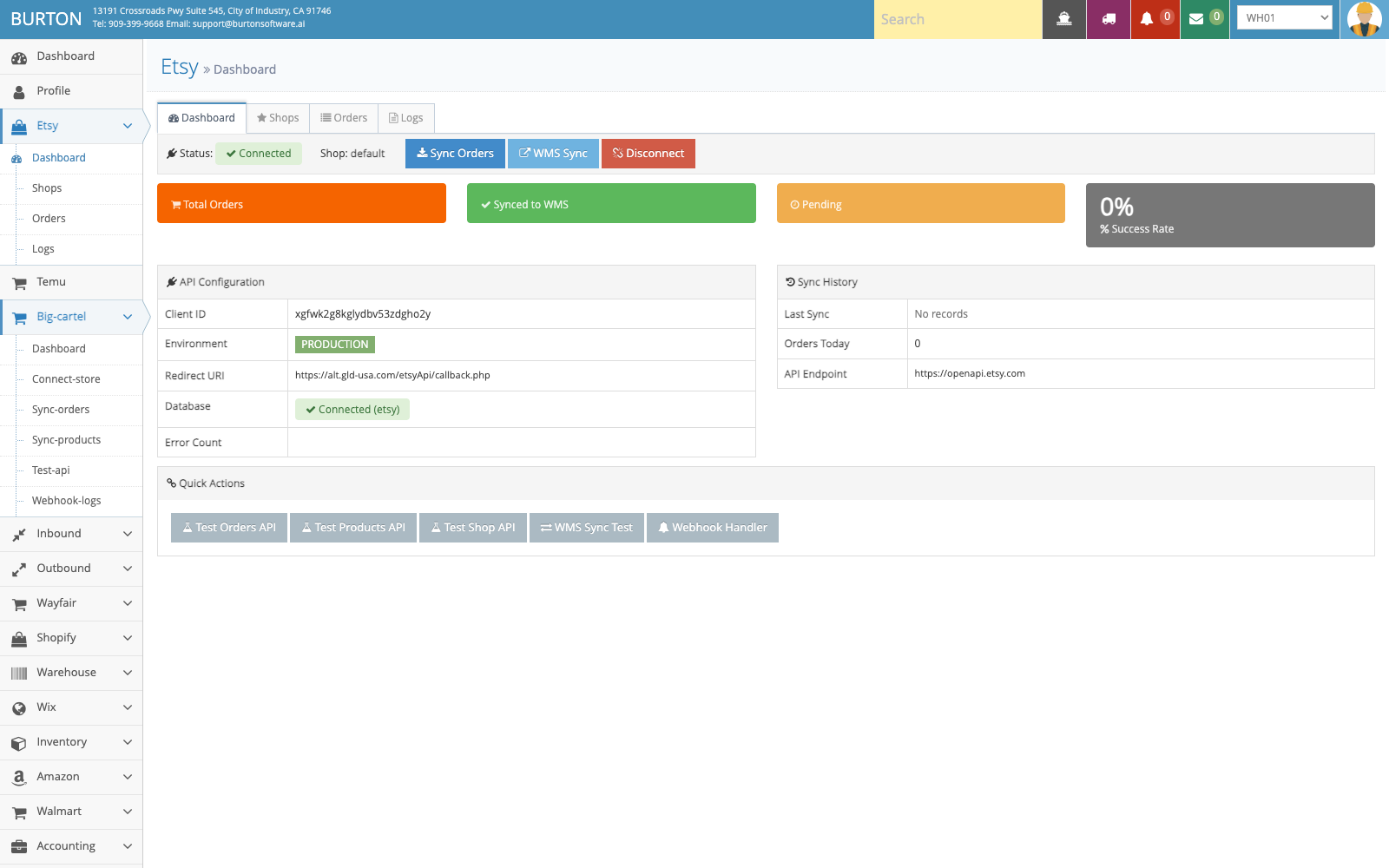
Channel dashboards show connection status, order sync, and API activity.
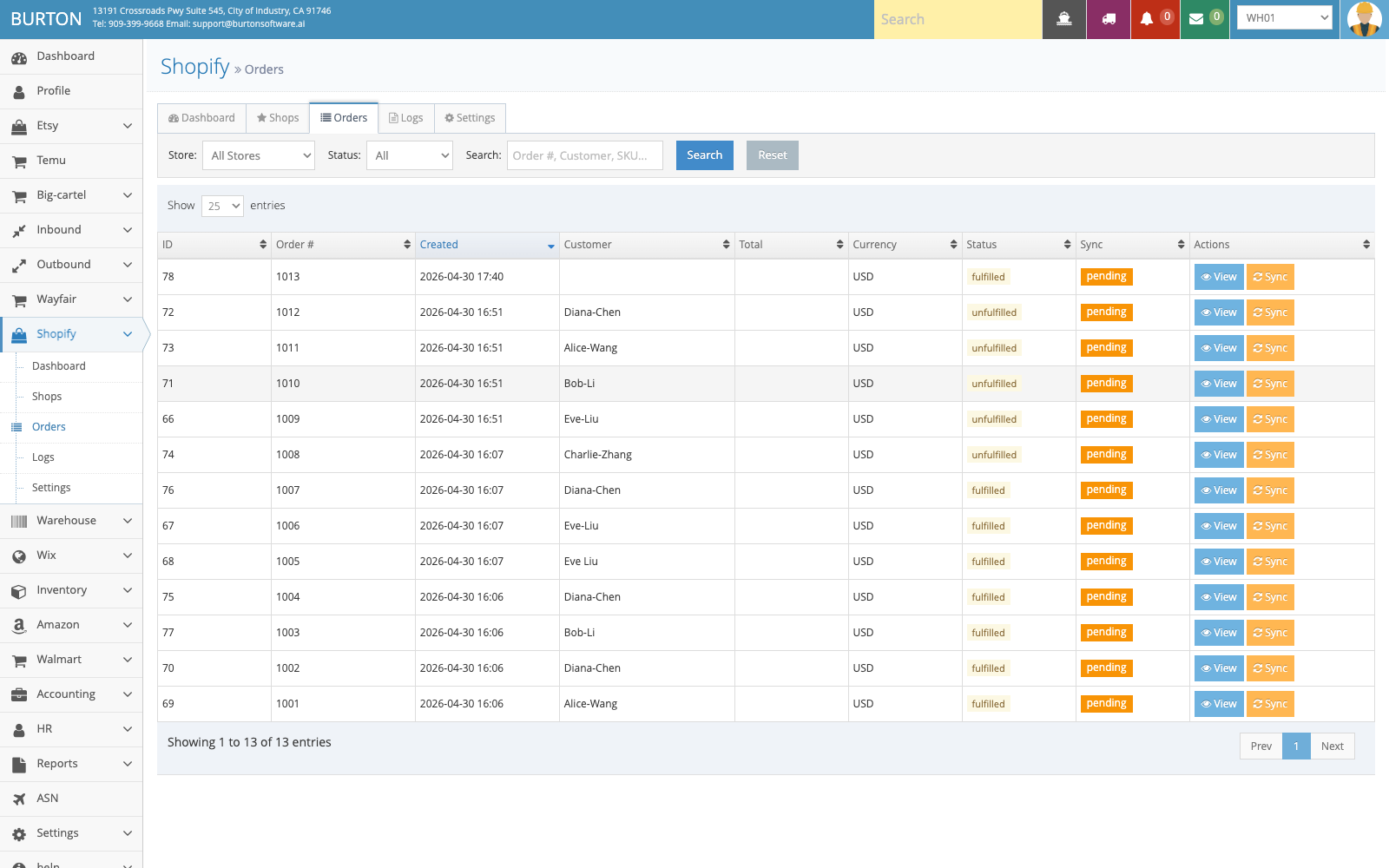
Shopify Orders shows platform orders after they enter the WMS fulfillment workflow.
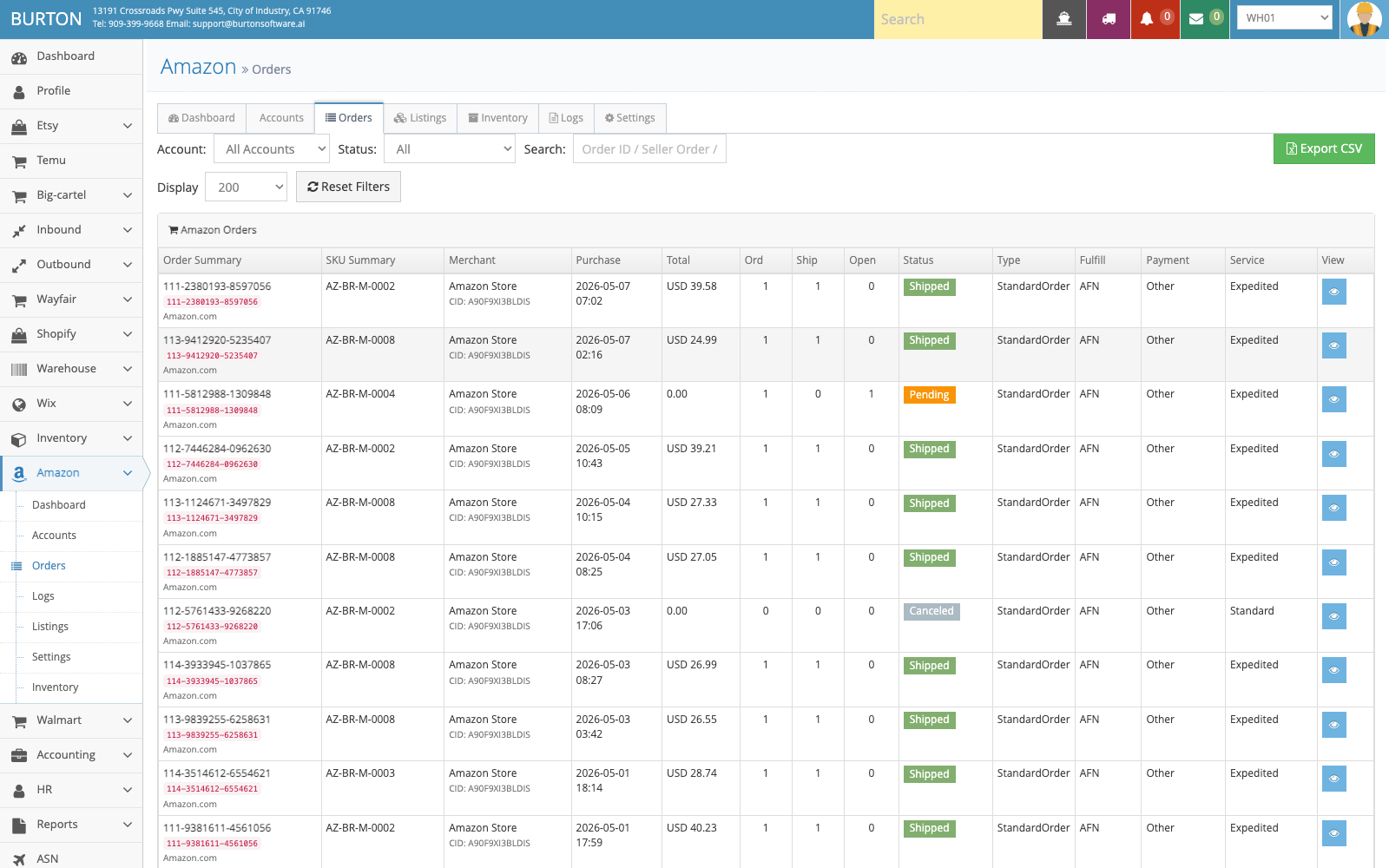
Amazon Orders supports order lookup, sync status review, and shipment confirmation follow-up.
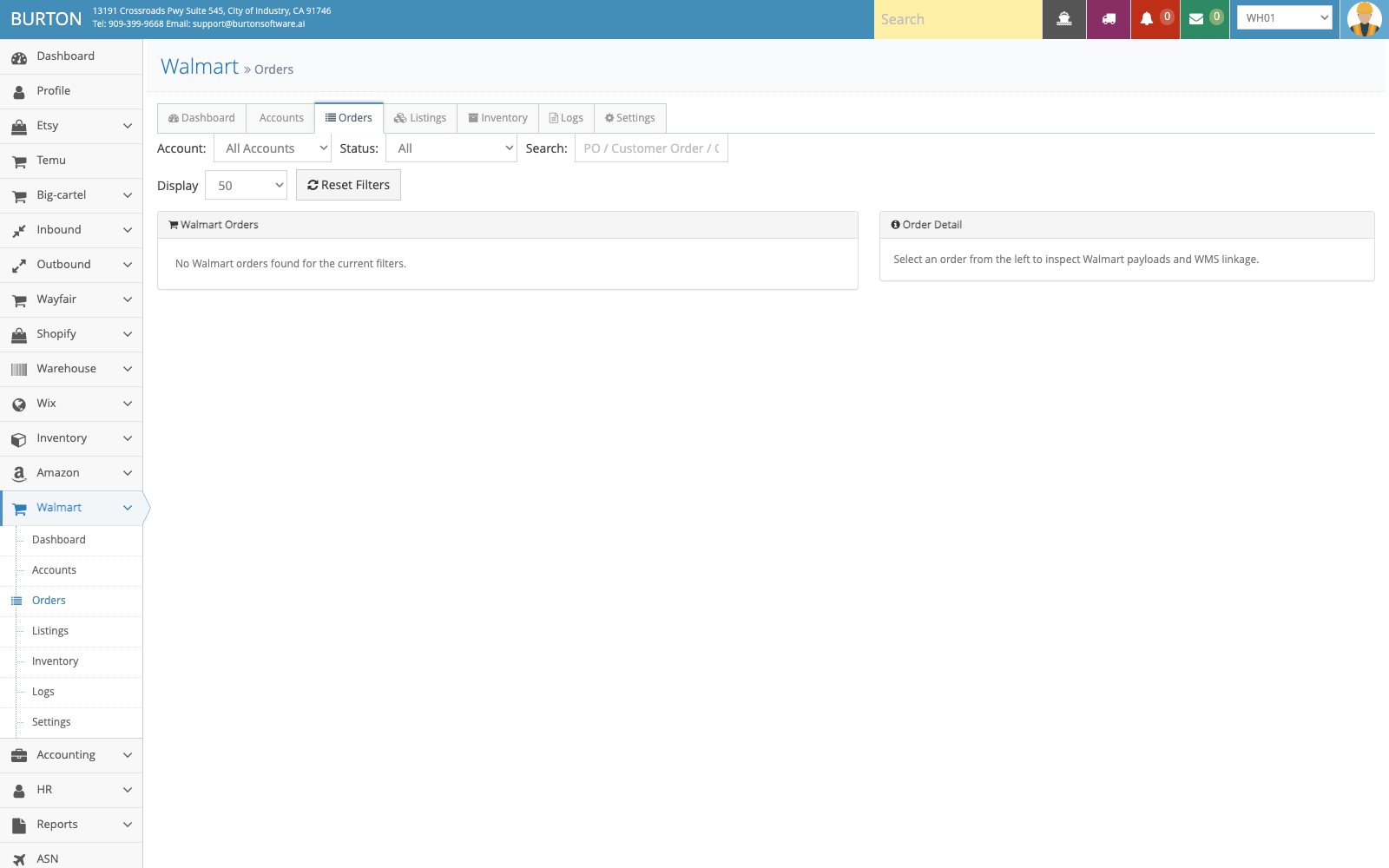
Walmart Orders supports marketplace order lookup, sync, and fulfillment tracking.
WMS Employee Schedule, Time Card, and Work Costing Guide
How HR Schedule, HR Time Card, Warehouse Work Log, Work Order Cost, and Labeling Cost support labor planning, time review, and cost reconciliation.
01 Module Scope
Employee scheduling, time cards, and work costing connect labor planning, actual warehouse execution, and finance review. The related WMS pages are HR Schedule, HR Time Card, Warehouse Work Log, and the Accounting pages for Work Order Cost, Labeling Cost, and Work-order-task.
02 Page Responsibilities
| Page | Purpose | Common Actions |
|---|---|---|
| HR > Schedule | View the employee schedule calendar by warehouse and plan daily or weekly staffing. | Select warehouse, switch Month / Week / Day / List views, Create schedules, and Print the calendar. |
| HR > Time Card | Review attendance by warehouse, department, and date. | Compare, Check, Resync, and generate Monthly Report. |
| Warehouse > Work Log | Review actual warehouse activity by employee and date range. | Select warehouse, user, datefrom, dateto, Find, Export PDF, Export Excel, Print Report, or Full Detail. |
| Accounting > Work Order Cost | Review work order costs by warehouse and date range. | Enter datefrom / dateto, Find, and export filtered results to Excel. |
| Accounting > Labeling Cost | Maintain and export labeling cost records. | Select date, Find, Export Excel, and use Add Data when an authorized adjustment is needed. |
| Accounting > Work-order-task | Review task-level work order cost detail. | Filter by warehouse and date range to validate Work Order Cost details. |
03 Standard Workflow
- The supervisor reviews HR > Schedule by warehouse and confirms labor coverage with Month, Week, Day, or List view.
- If a new schedule is needed, use Create. For floor operations, use Print to share the daily or weekly plan.
- After daily execution, the warehouse lead reviews Warehouse > Work Log by employee and date range, then exports PDF or Excel for the closeout file.
- HR or operations reviews HR > Time Card by warehouse, department, and date with Compare and Check. Use Resync only when the data source must be refreshed.
- Finance reviews Accounting > Work Order Cost, Labeling Cost, and Work-order-task using the same warehouse and date range, then reconciles those results against Work Log and Time Card.
- Before month close, export Work Log, Time Card Monthly Report, Work Order Cost, and Labeling Cost, then align them with Invoice Records and Invoice Rules.
04 Closeout Checklist
| Check | What to Confirm |
|---|---|
| Warehouse scope | Schedule, Time Card, Work Log, and Work Order Cost use the same warehouse. |
| Date range | Labor and cost reports use the same datefrom and dateto. |
| Employee scope | Work Log can filter by Select User for individual productivity and exception review. |
| Department scope | Time Card supports All Department and department filters before monthly reporting. |
| Cost scope | Work Order Cost, Work-order-task, and Labeling Cost match actual work orders, labeling activity, and invoice rules. |
05 Risk Controls
- Schedule is the plan; Work Log and Time Card are the execution evidence. Do not settle labor only from the schedule calendar.
- Resync refreshes time card data and should be limited to HR or supervisors after review.
- Confirm warehouse, employee, department, and date filters before exporting PDF or Excel.
- If Work Order Cost shows No record found, check the date range, warehouse, and whether work-order tasks generated cost records.
- Labeling Cost supports Add Data, so adjustments should be tied to the correct customer and billing rule.
06 Reference Screens
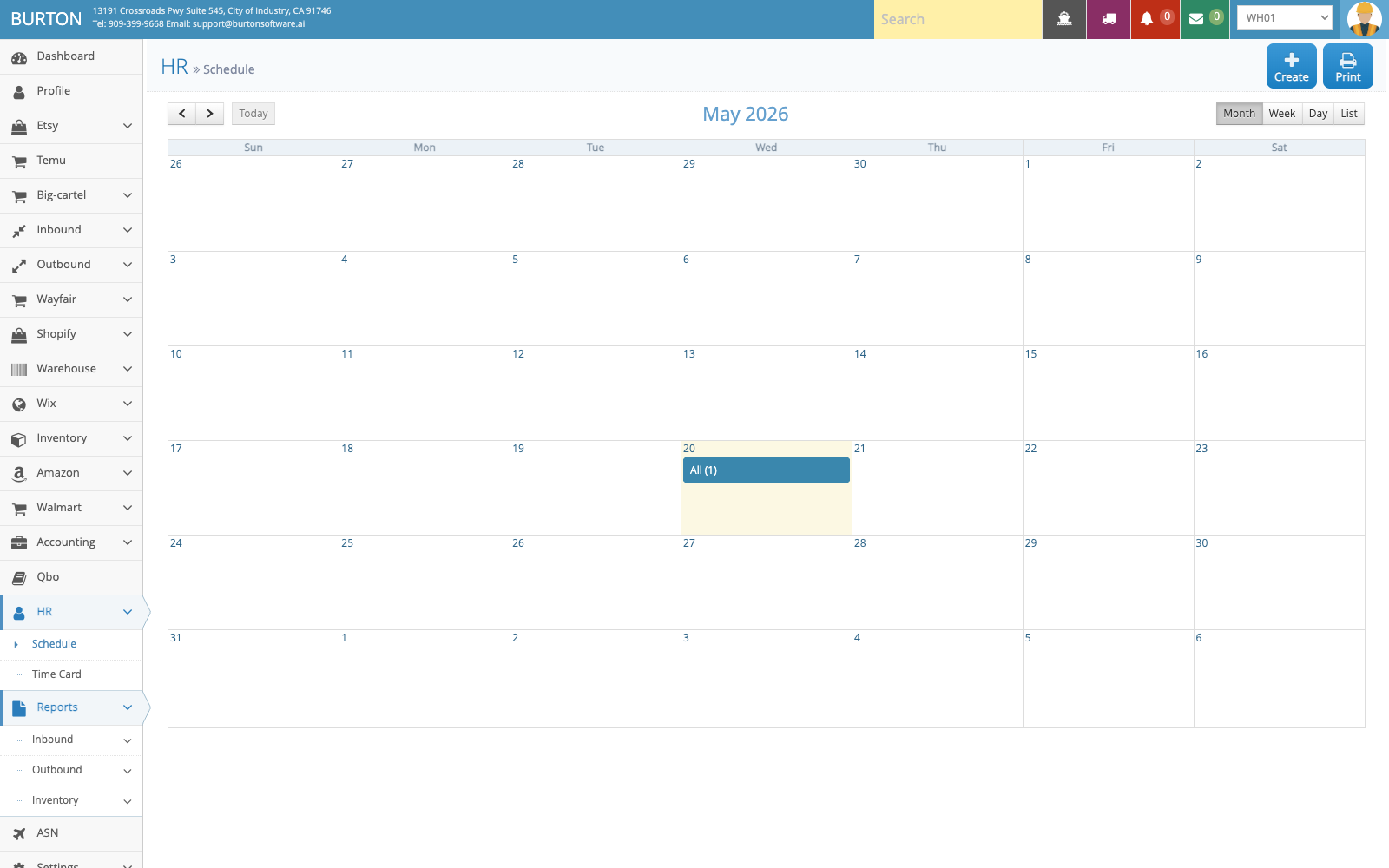
HR Schedule shows the warehouse schedule calendar with Create, Print, and multiple calendar views.
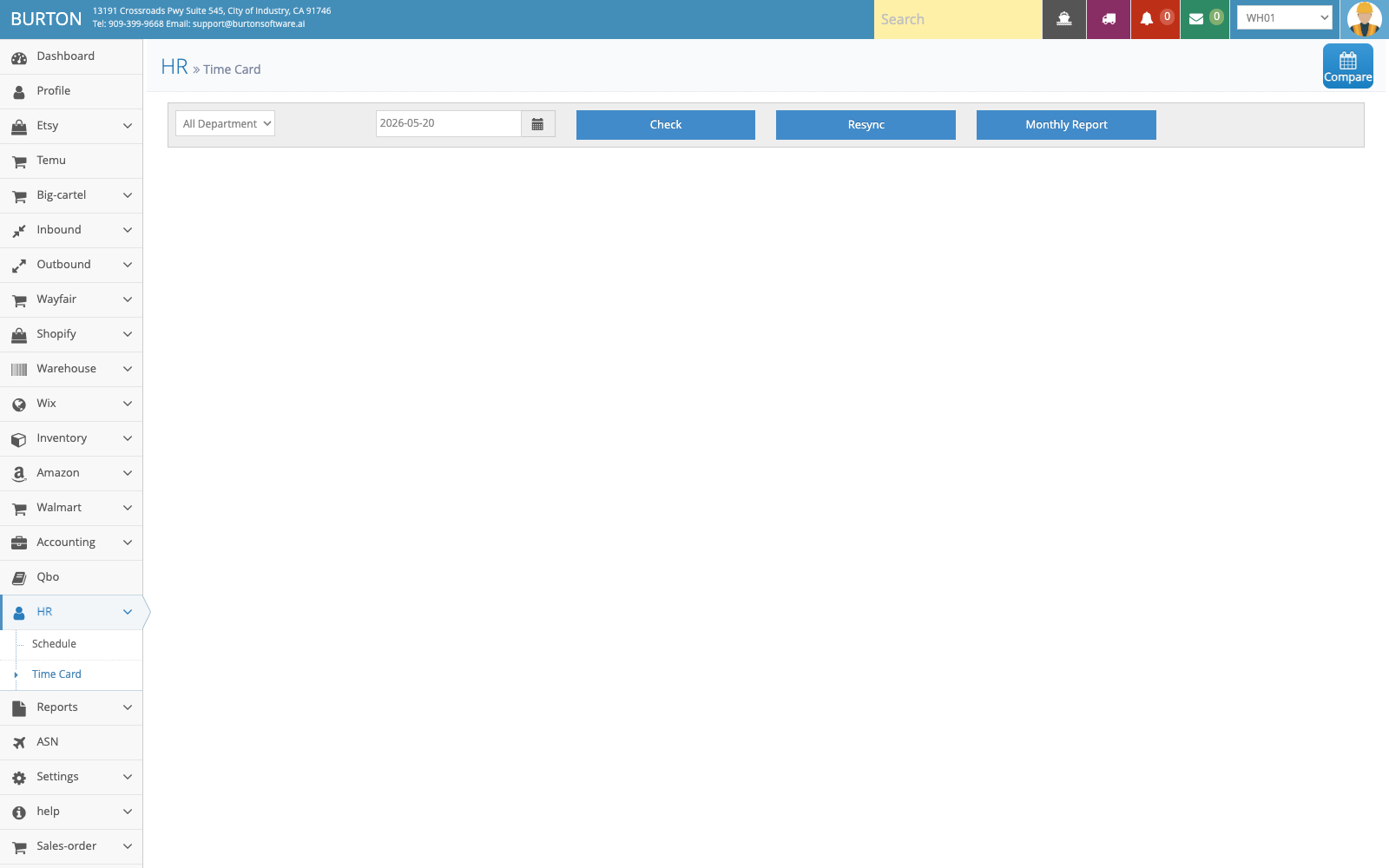
HR Time Card reviews attendance by warehouse, department, and date with Compare, Check, Resync, and Monthly Report.
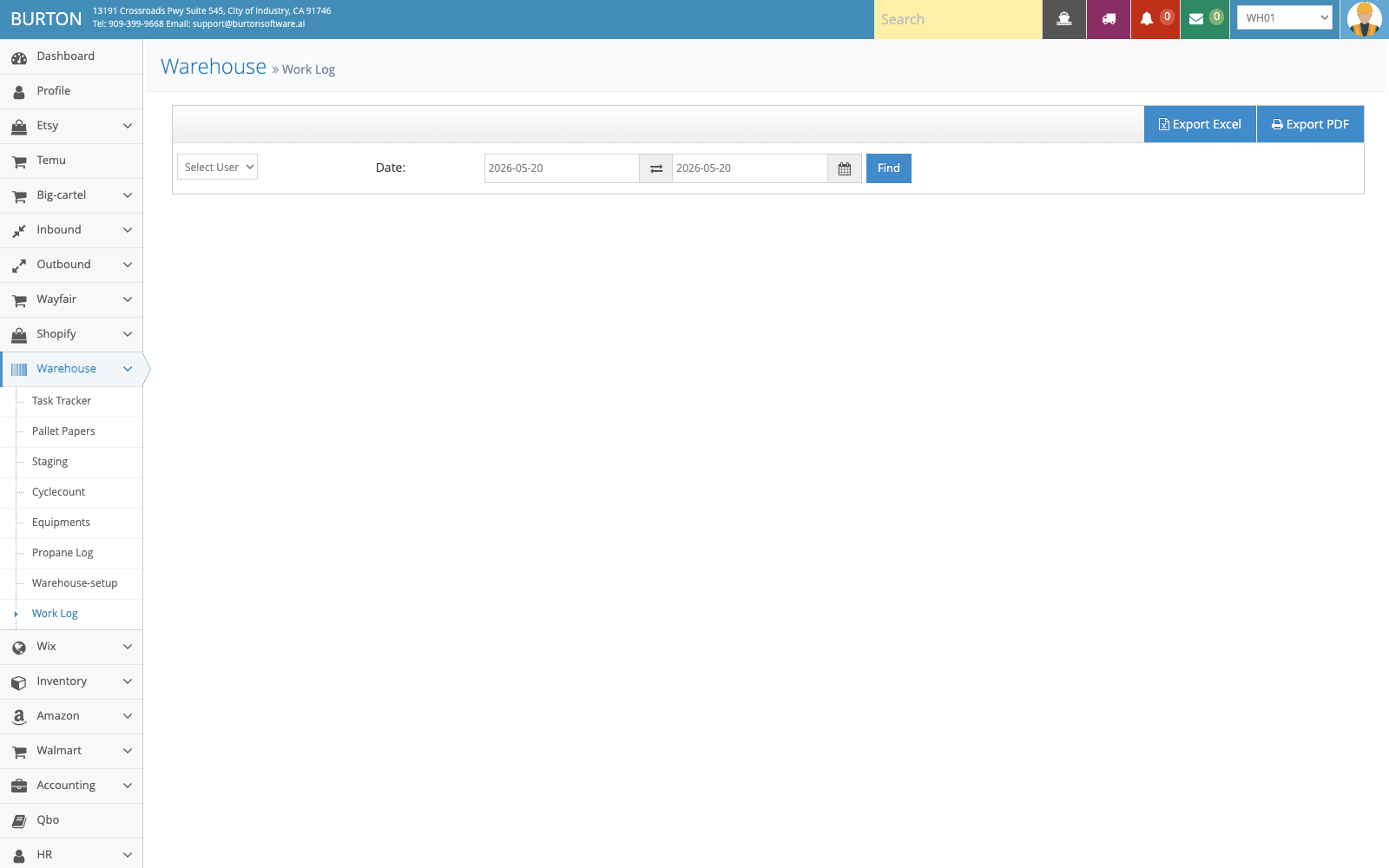
Warehouse Work Log filters actual activity by employee and date range and supports PDF / Excel export.
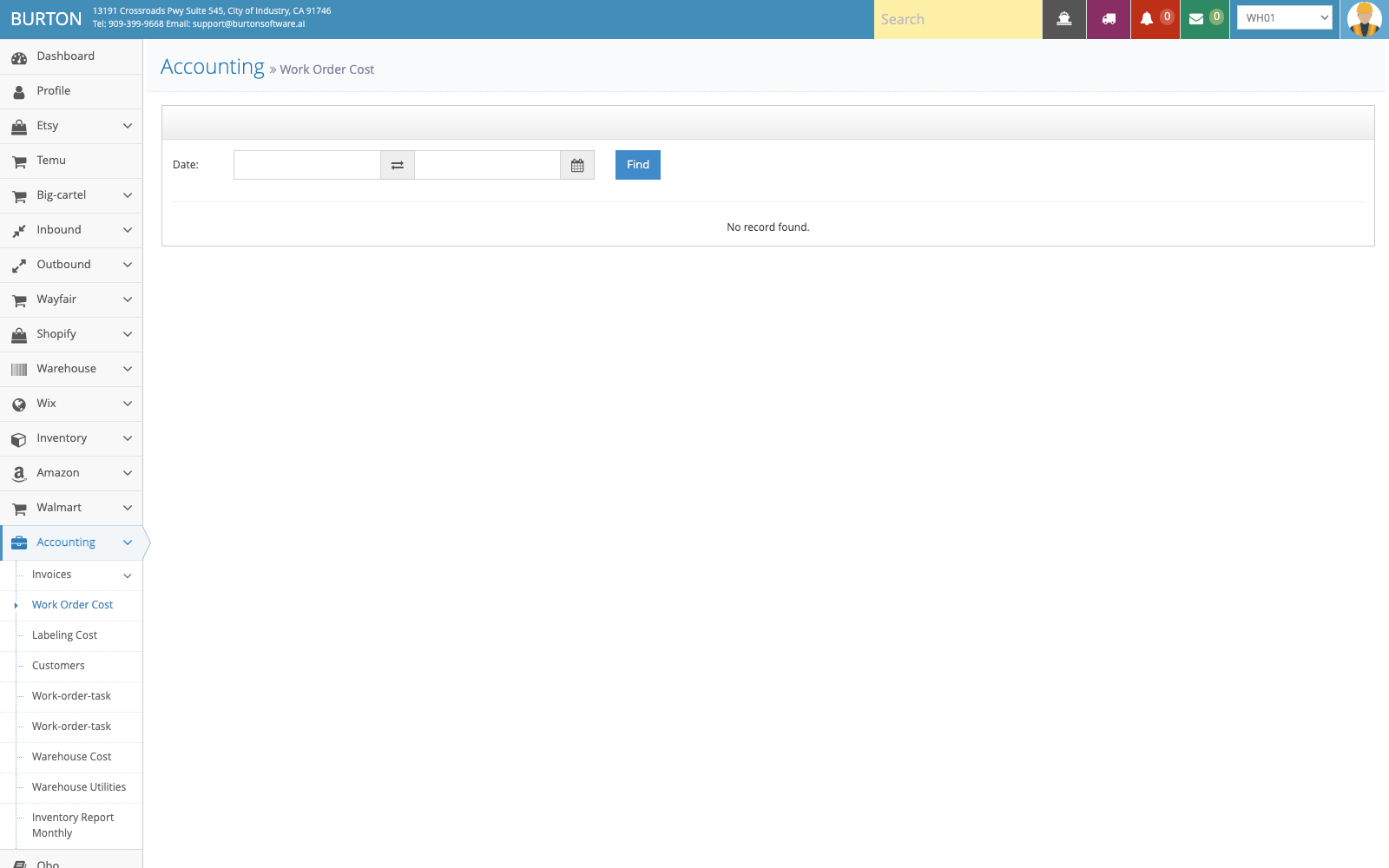
Work Order Cost summarizes work order costs by warehouse and date range for finance review.
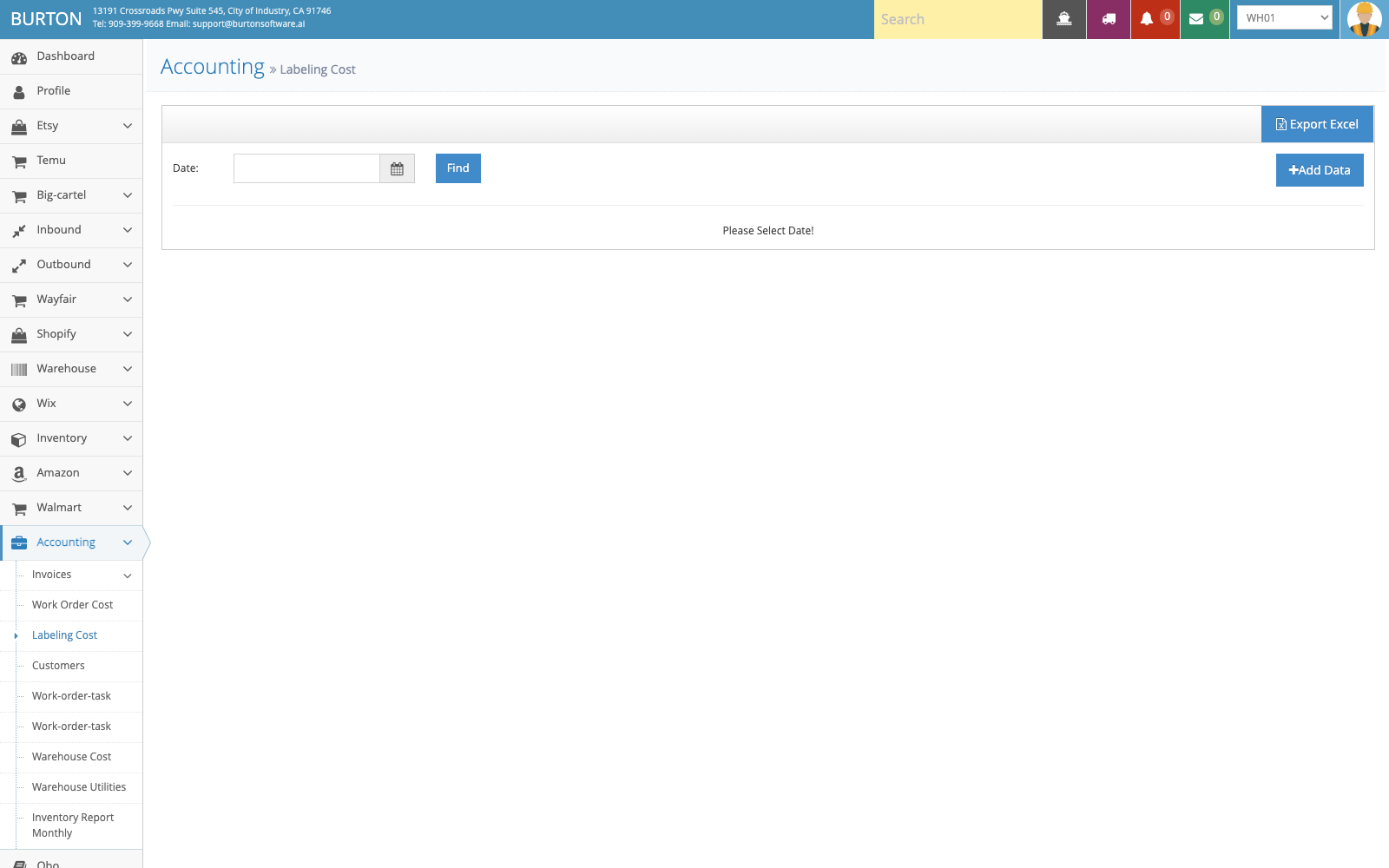
Labeling Cost supports cost lookup, export, and authorized manual additions.
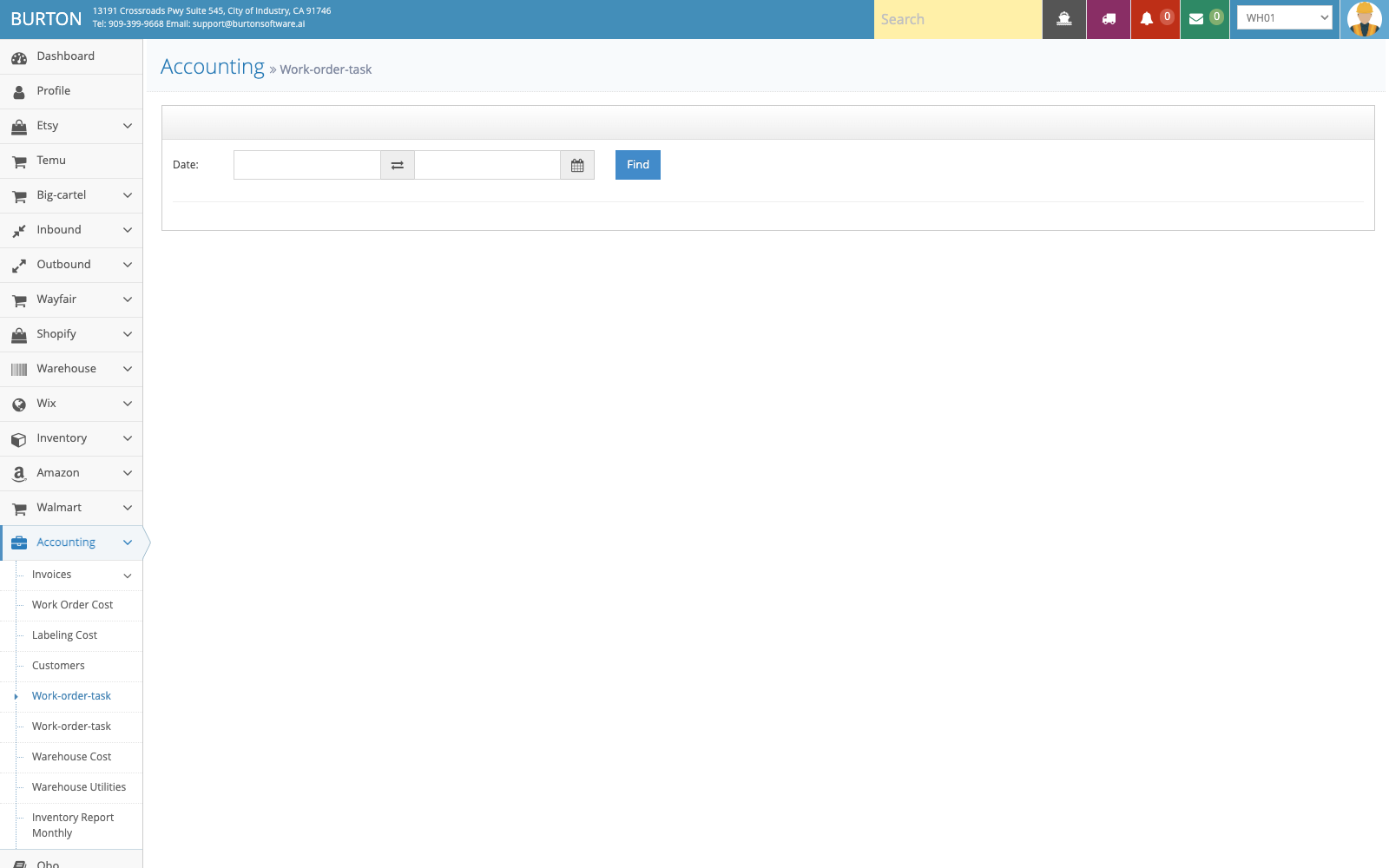
Work-order-task validates task-level cost details behind work order costing.
WMS Reports, Accounting, Permissions, and Work Costing Guide
How reports, accounting, users, groups, sales orders, work orders, HR schedule, time card, and work costing support management closeout.
01 Module Scope
Reports, Accounting, Settings, Sales Order, Work Order, and HR support operational review, billing, access control, sales order handoff, work order management, employee time records, and supporting administration.
02 Reports
Reports include inbound, outbound, and inventory views such as receiving report, monthly receiving, release report, shipping report, inventory by style, inventory received date, inventory shipped date, inactive inventory, and location report.
Recommended use:
- Filter by date, customer, account, warehouse, or report type.
- Export or print only the reports needed for customer review or internal reconciliation.
- Compare report outputs with operational pages before billing or closing a period.
03 Accounting
Accounting includes invoice records, invoice rules, labeling cost, work order cost, work-order-task, customers, warehouse cost, utilities, and monthly inventory reporting. It connects warehouse activity with customer billing and internal cost review.
04 Employee Schedule and Work Costing Loop
| Step | Page | Management Use |
|---|---|---|
| Labor plan | HR > Schedule | Review the warehouse schedule calendar with Create, Print, Month, Week, Day, and List views. |
| Time review | HR > Time Card | Compare and check attendance by warehouse, department, and date; use Resync and Monthly Report when authorized. |
| Actual work | Warehouse > Work Log | Review work logs by employee and date range, then export PDF or Excel for closeout. |
| Cost review | Accounting > Work Order Cost / Labeling Cost / Work-order-task | Validate work order, labeling, and task cost by warehouse and date range. |
Detailed steps are available in WMS Employee Schedule, Time Card, and Work Costing Guide.
05 Settings and Permissions
Settings includes Users, Function List, Groups, and Group Permissions. Use it to separate warehouse, customer service, finance, supervisors, and admin responsibilities.
Recommended permission model:
| Role | Access Suggestion |
|---|---|
| Warehouse user | Inbound, Outbound, Inventory, Warehouse task pages, and limited Work Log access. |
| Customer service | Inbound, Outbound, channel orders, selected reports. |
| Finance | Accounting and report pages, limited operational edits, and cost exports. |
| Supervisor | Overview, reports, HR schedule/time card review, warehouse logs, and exception review. |
| Admin | Settings, integrations, users, groups, permission changes, Resync, and cost adjustments. |
06 Sales Order and Work Order
Sales Order handles sales order list and creation. Work Order supports task tracking, priority, owner, view, and print flows. Use them when a customer request needs to become an executable warehouse task.
07 Reference Screens
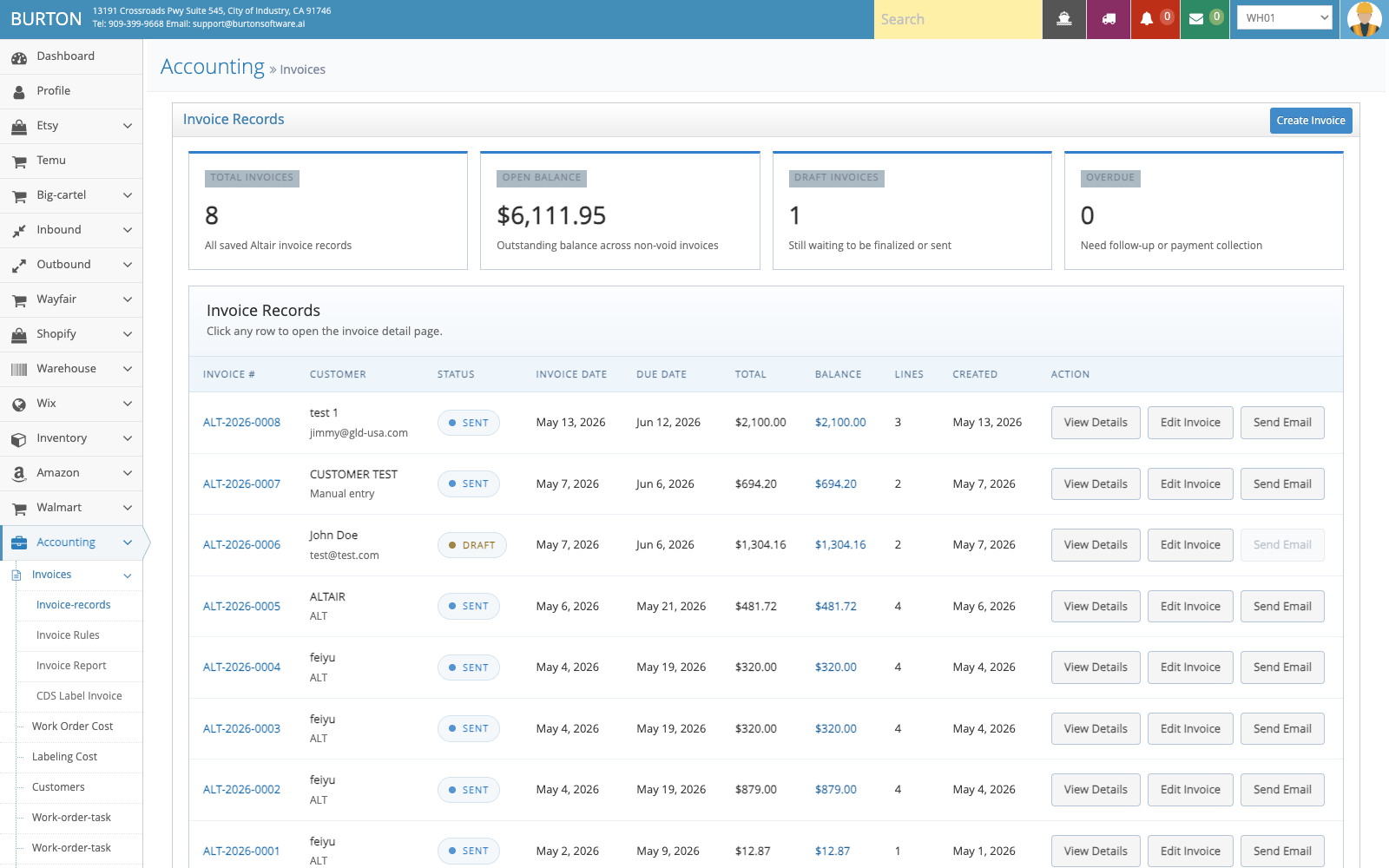
Invoice Records is used to review customer invoices, rules, and billing outcomes.
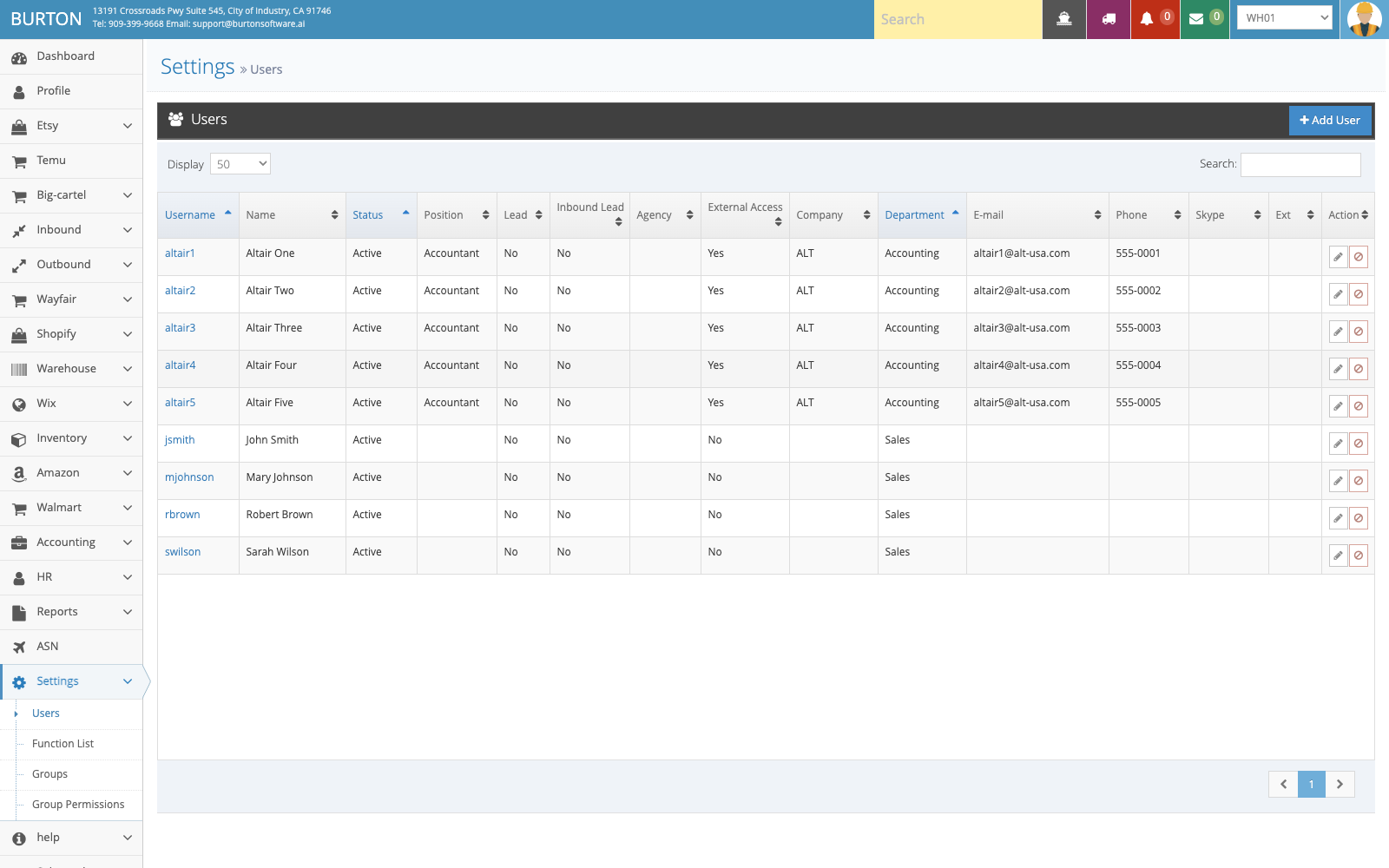
Users and permissions control which functions each role can view and operate.
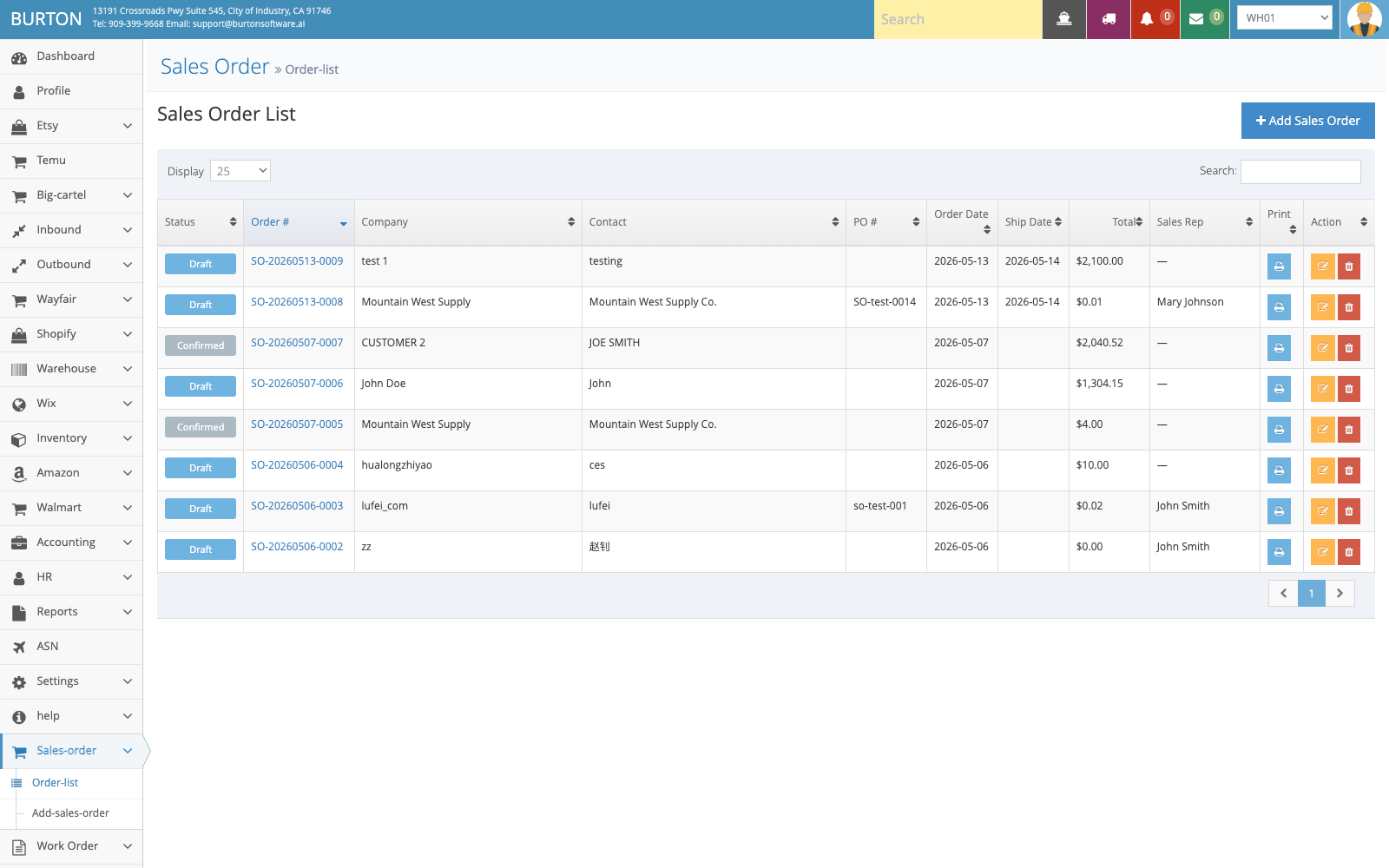
Sales Order supports order management, creation, and handoff into execution.
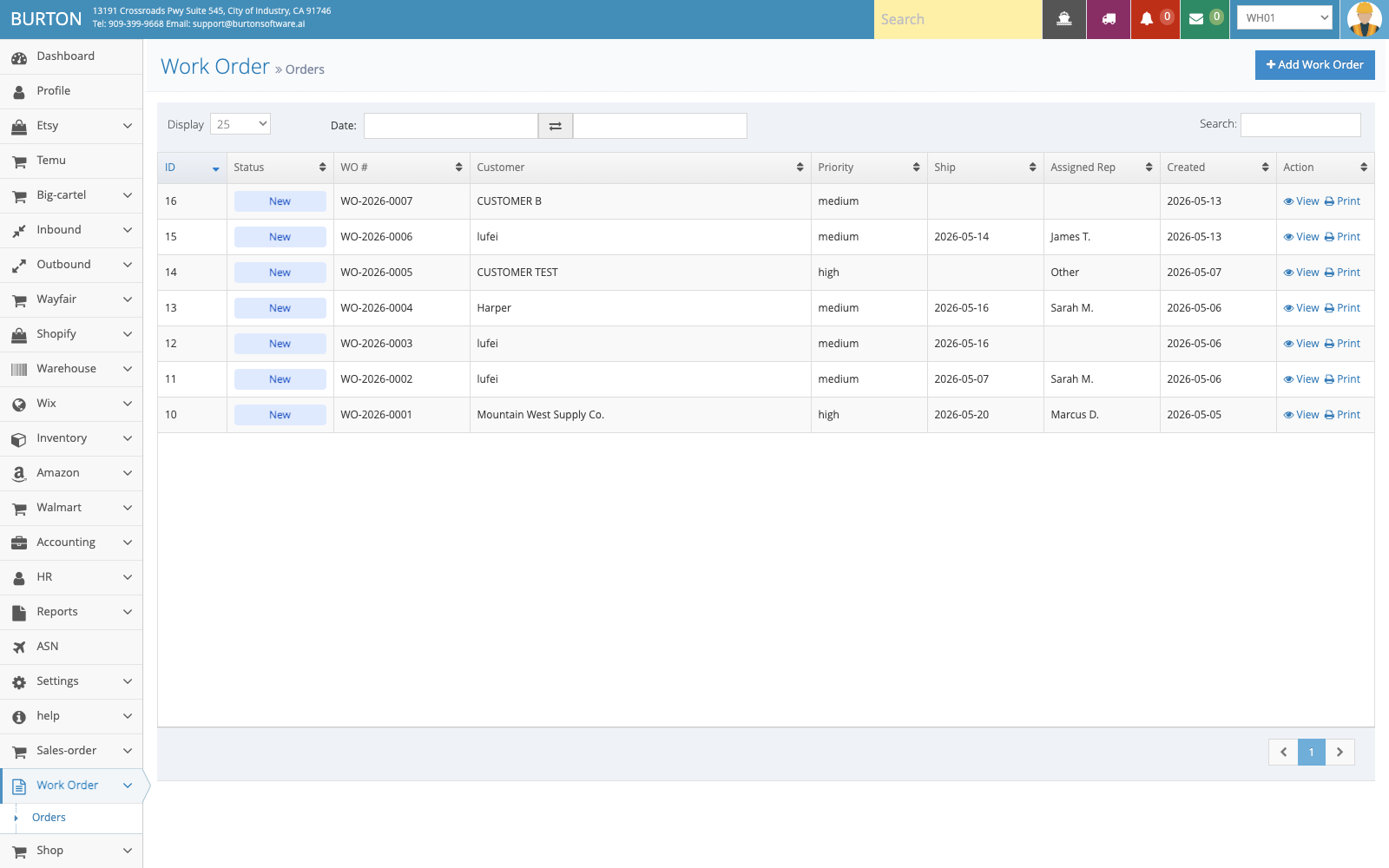
Work Order helps teams track work orders, owner, priority, and printing.
WMS Page Function Index
Quick index of Burton Software WMS menu entries, including refreshed HR schedule, time card, work log, and work costing pages.
01 Collection Note
This index is based on a read-only review of the live Burton Software WMS system on 2026-05-16, with HR schedule, time card, work log, and work costing pages refreshed on 2026-05-20. A total of 119 menu entries were identified, and 118 internal pages were opened successfully. Download links, external portals, and logout actions are not included as operating procedures.
02 Page Index
02.1 Dashboard
| Page | Purpose |
|---|---|
| Dashboard | Inbound and outbound dashboard for monthly receiving, forecasts, inwork status, empty status, and operational exceptions. |
02.2 Inbound
| Page | Purpose |
|---|---|
| Inbound Orders | Receiving records, status filters, new inbound creation, and customer reports. |
| Devanning Labels | Devanning labels with SKU, lot, quantity, and generated records. |
| Receiving Schedule | Calendar-based receiving appointments and dock capacity planning. |
| Carriers | Carrier maintenance for appointment and transport records. |
| Cycle Count | Inbound counting, label review, and discrepancy support. |
02.3 Outbound
| Page | Purpose |
|---|---|
| Outbound Orders | Outbound order list with status, customer, consignee, date, search, and import actions. |
| Outbound Overview | Progress overview by order, picking, work order, labeling, staging, and loading. |
| Release | Release execution, print label, picking list, labeling, pallet paper, routing, and staged status. |
| Forward Picking | Pick task creation and tracking. |
| Schedule Load | Truck appointment, loading, BOL, and load status. |
| Sample Pick List / Repack / Labeling Cost / Routing Portals | Supporting outbound execution and service cost pages. |
02.4 Warehouse
| Page | Purpose |
|---|---|
| Task Tracker | Track warehouse work by employee and time period. |
| Pallet Papers | Pallet paper, release, location, picker, and staged status. |
| Staging | Staged release records, pallets, quantities, and staging locations. |
| Cyclecount / Equipment / Propane / Work Log | Warehouse operations, equipment, propane, counts, and Work Log filtering by user and date range with PDF / Excel export and full-detail printing. |
| Warehouse Setup | Warehouse code, address, coordinates, timezone, capacity, and active status. |
02.5 Inventory
| Page | Purpose |
|---|---|
| Products | SKU, style, product dimensions, cube, prepack, and on-hand information. |
| Warehouse Map | Warehouse capacity, occupancy, rack status, and available space. |
| Inventory | On-hand, available, reserved, received date, and inventory status. |
| Location by Zone / Style / Lot | Location lookup by zone, style, and lot. |
02.6 Channels
| Page Group | Purpose |
|---|---|
| Shopify / Wix / Etsy | Store connection, orders, products, inventory, logs, and settings where available. |
| Amazon / Walmart | Account connection, orders, listings, inventory, logs, and settings. |
| Wayfair | Orders, pickup registration, labels, ASN, and UCC128 workflows. |
| Big Cartel / Temu | Channel connection, order sync, product sync, tests, and webhook logs. |
02.7 Reports and Accounting
| Page Group | Purpose |
|---|---|
| Inbound Reports | Receiving, monthly receiving, schedule, packing list, big boxes, and consignee receiving reports. |
| Outbound Reports | Release, shipping, pallet papers, labeling, print label, monthly and yearly outbound reports, and past-due reports. |
| Inventory Reports | Inventory by style, location, received date, shipped date, inactive inventory, and in/out details. |
| Accounting | Invoice records, invoice rules, customer billing, Work Order Cost, Work-order-task, Labeling Cost, warehouse cost, utilities, and monthly inventory reports. |
02.8 Administration and Support
| Page | Purpose |
|---|---|
| Settings > Users / Function List / Groups / Group Permissions | User, function, group, and permission management. |
| Sales Order | Sales order list and sales order creation. |
| Work Order | Work order list, priority, owner, view, and print flow. |
| HR | Employee schedule calendar and time card review by warehouse, department, and date, including Compare, Check, Resync, and Monthly Report. |
| Help | Manual and office forms. |
03 Recommended Reading Order
- New warehouse users: overview, standard flow, inbound, outbound, and inventory guides.
- Supervisors and implementation users: channel, reports/accounting/admin, and page index.
- Use this index for navigation; use the SOP guides for operating procedure details.