 BurtonSoftware
01 Scope
When a third-party ERP, OMS, or commerce platform supports OAuth 2.0 and Burton has an enabled connector or completed project adaptation, the customer can connect through the platform's official authorization page. The customer does not provide the platform password through Burton documentation or support tickets.
OAuth is not universal. Platforms that provide only API keys, tokens, signed APIs, or file exchange require the corresponding authentication method.
02 Preparation
| Item | Requirement |
|---|---|
| Account rights | Use an administrator authorized to approve the connection. |
| Connection scope | Confirm store, organization, marketplace, warehouse, and environment. |
| Permission scope | Confirm required order, product, inventory, and fulfillment permissions. |
| Base mappings | Prepare client, SKU, warehouse, carrier, and status mappings. |
| Browser session | Sign in to the correct account to avoid authorizing the wrong organization. |
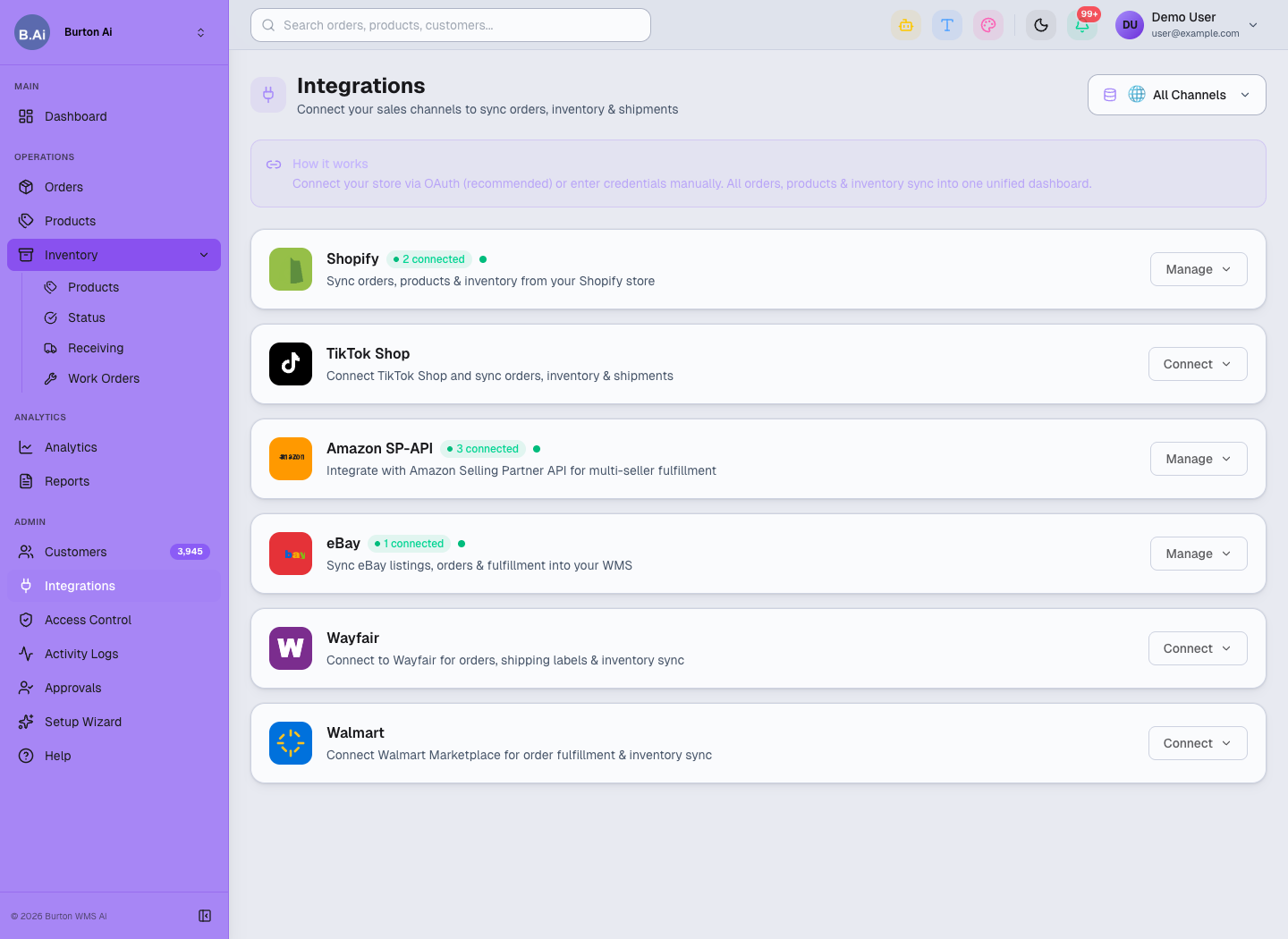
Choose an enabled connector in Integrations; available actions and fields depend on that connector.
03 Standard Flow
- Select the target platform in Burton Integrations or Setup Wizard.
- Confirm connection name, environment, client, and store scope.
- Select Connect to open the third party's official authorization page.
- Verify the account, organization, and requested scope, then approve.
- Return to Burton and confirm status, authorization time, and accessible scope.
- Use a test order to validate intake, fulfillment, and confirmation.
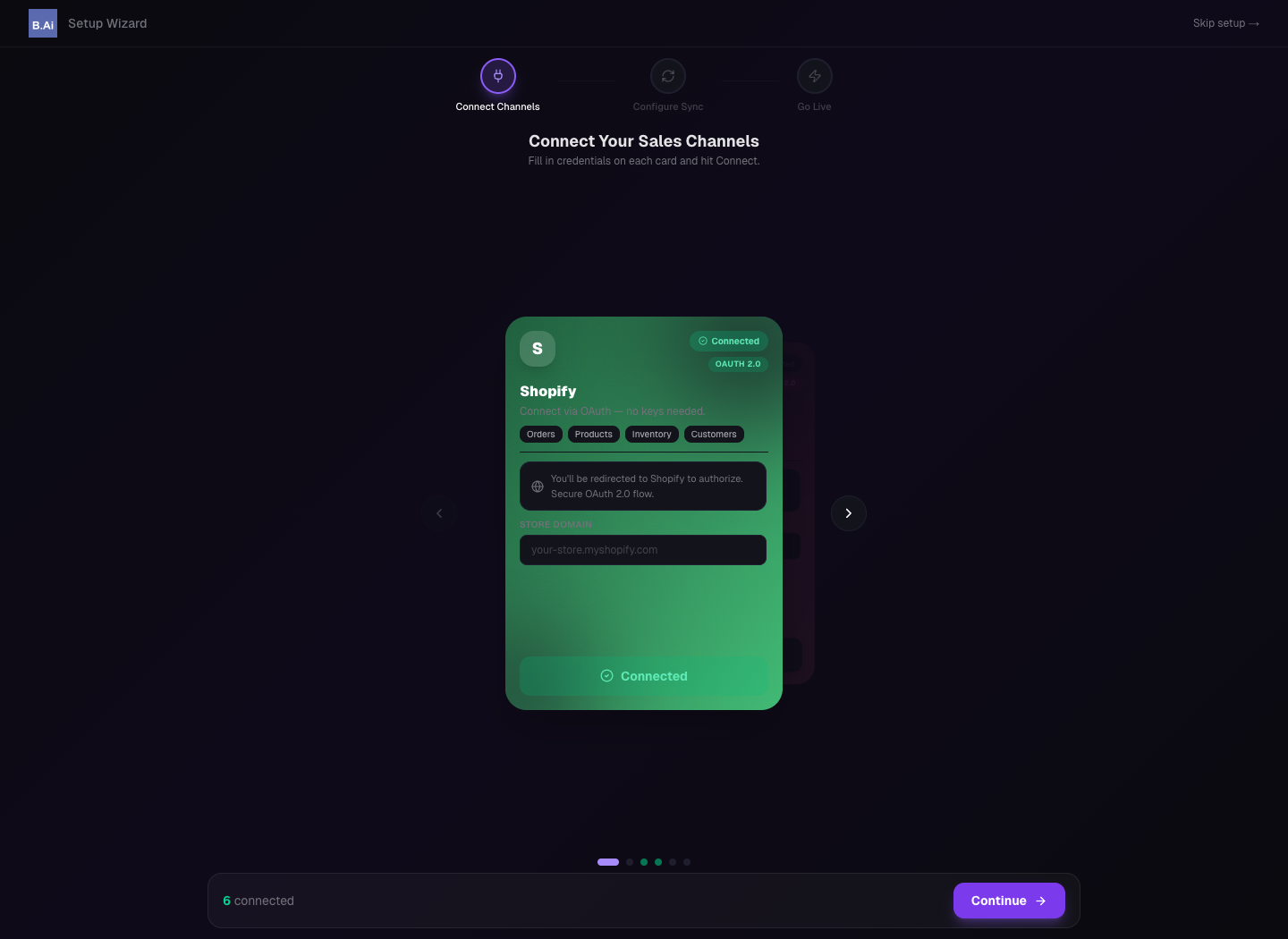
Setup Wizard supports connection parameters, business mappings, and rollout checks.
04 Validation
- Connection is shown as Connected or the project-defined valid state.
- A test order reaches the correct client and warehouse without duplication.
- SKU, quantity, address, service, and status mappings match the design.
- Carrier, tracking, and fulfillment status can return after shipment.
- Activity Logs expose authorization, rate-limit, field, or callback errors.
05 Security and Change Control
Burton does not request passwords, client secrets, or refresh tokens in public documents, instant messages, or screenshots. Apply least privilege and separate test and production credentials. Revoke or reauthorize after administrator changes, security events, or termination.
Test permission scope, callback URL, API version, and store ownership changes before production deployment.
06 FAQ
| Issue | Check |
|---|---|
| Connection remains inactive | Callback URL, application status, account, and permission scope. |
| Wrong store was authorized | Disconnect immediately, sign out of the third party, and authorize again. |
| Connection expires later | Token lifecycle, admin changes, revoked rights, and platform policy. |
| Target ERP is not listed | The connector may not be enabled; submit the system name and API materials for assessment. |
| Only order intake is needed | A least-privilege scope limited to orders and required fulfillment may be assessed. |