 BurtonSoftware
01 Operating Scenario
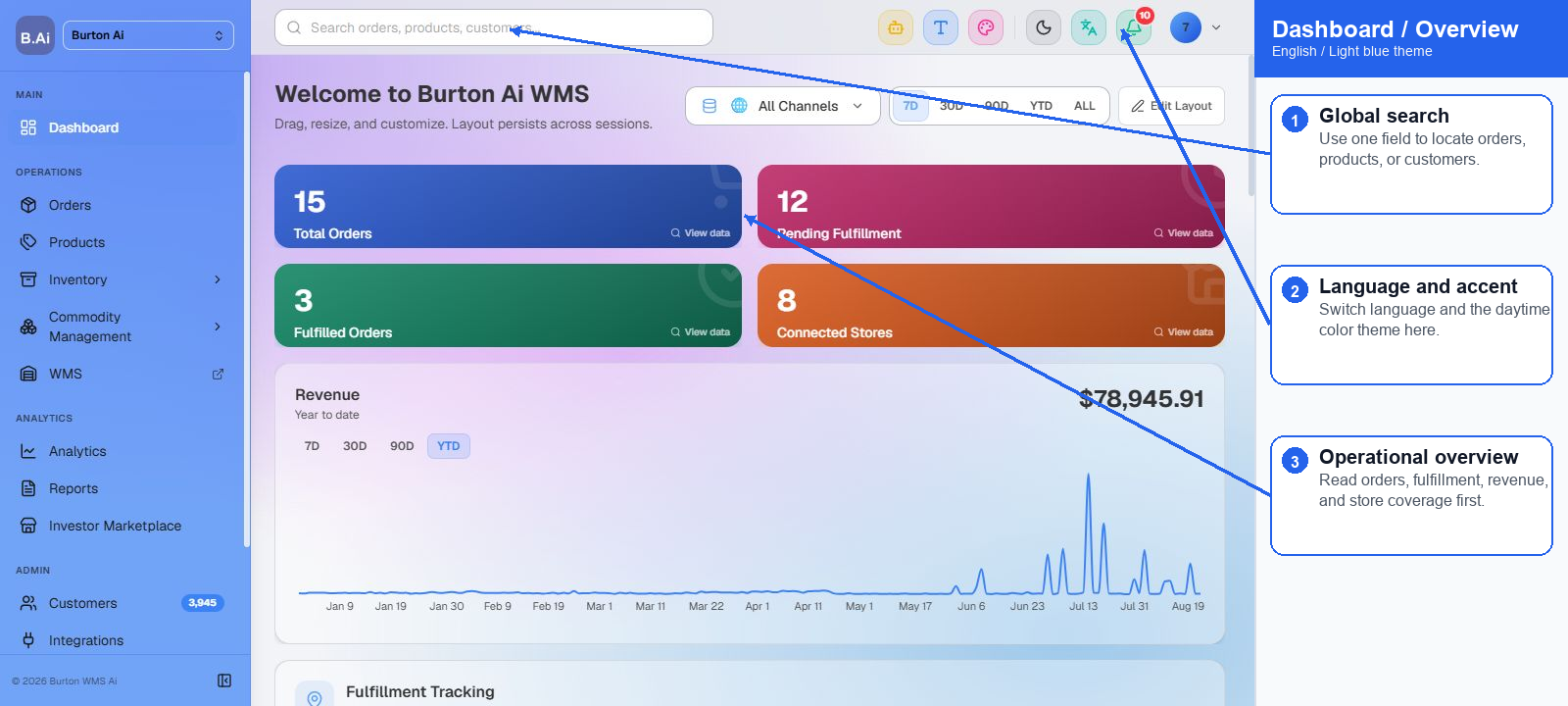
Dashboard is the OMS overview entry for order count, unfulfilled orders, fulfilled orders, connected stores, revenue trends, fulfillment map, and activity feed.
02 Operating Guide
02.1 Review Core Metrics
(1) Start with Total Orders, Unfulfilled, Fulfilled Orders, and Connected Stores.
(2) Switch between 7D, 30D, 90D, YTD, and ALL to compare order and revenue movement across periods.
(3) Use View data on a metric card when the underlying records need to be reviewed.
02.2 Review Fulfillment and Activity
(1) Use the fulfillment map to review shipment locations and shipment distribution.
(2) Use the activity feed to review recent order events and status changes such as pending, confirmed, and fulfilled.
(3) If order volume, fulfillment volume, or revenue appears abnormal, continue the review in Orders, Reports, or B.U.R.T.
03 Supplemental Notes
Dashboard is suitable for daily monitoring and management review. Use the Orders page for single-order verification.