 BurtonSoftware
01 Operating Scenario
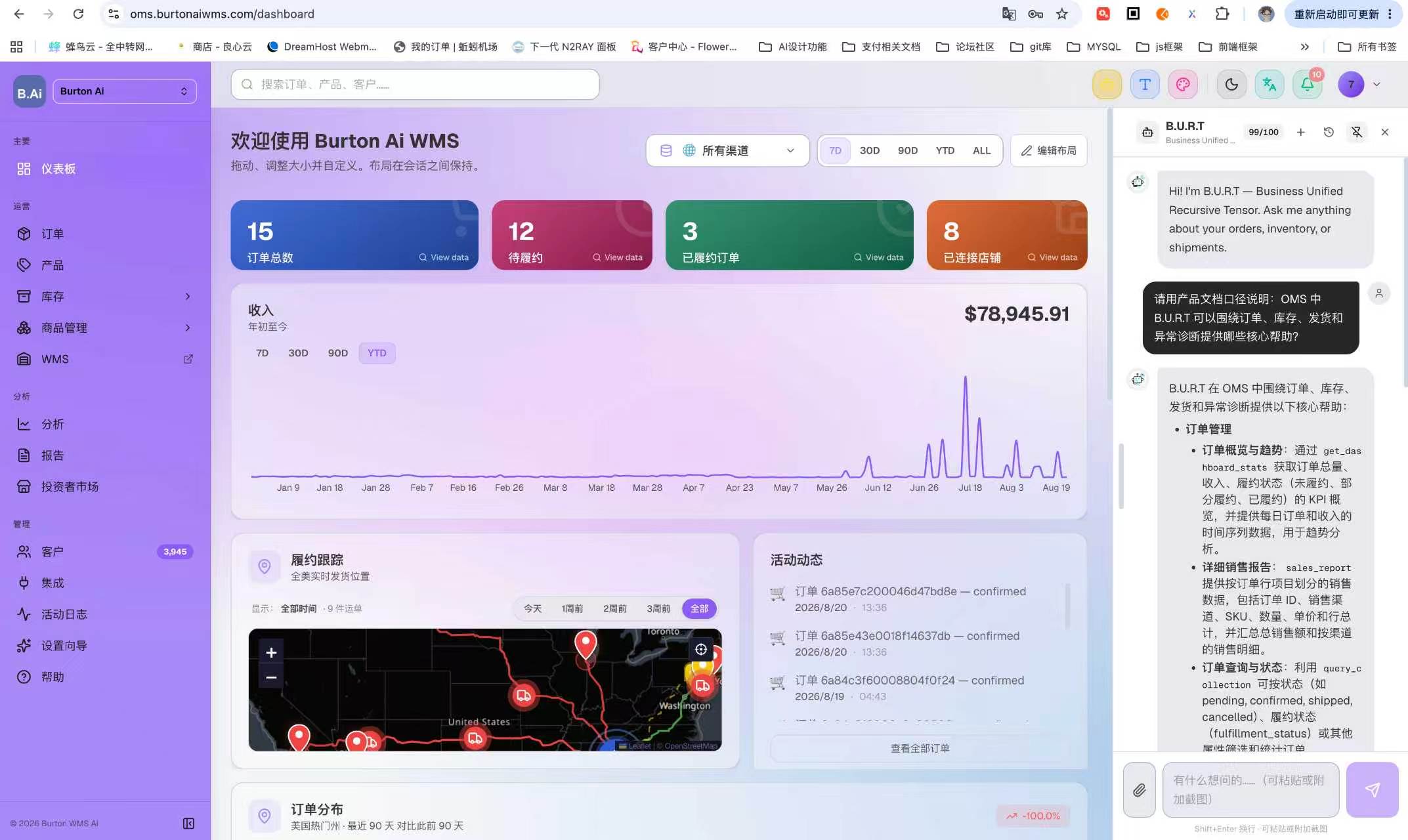
B.U.R.T is the OMS AI assistant for order lookup, inventory explanation, report interpretation, shipment context, exception diagnosis, and operational recommendations. It is useful when order volume is high, data is distributed across modules, or a user needs to identify an issue quickly.
02 Operating Guide
02.1 Open the AI Assistant
(1) Open any OMS page and locate the toolbar in the upper-right corner.
(2) Click the yellow B.U.R.T icon. The AI assistant panel opens on the right side of the screen.
(3) Enter a question about orders, inventory, shipments, reports, channel sync, or exception diagnosis.
02.2 Recommended Prompt Patterns
| Scenario | Suggested Prompt |
|---|---|
| Order lookup | Check the status, customer, items, and shipment information for order xxx. |
| Inventory diagnosis | Why does SKU xxx show stock but cannot be shipped? |
| Report interpretation | Summarize order volume, revenue, and fulfillment movement for the last 30 days. |
| Shipment tracking | Find recent exception shipments or uncompleted shipments. |
| Channel sync | Check whether a specific channel has order sync issues. |
02.3 Verify Results
(1) After B.U.R.T returns an answer, verify it against order detail, inventory records, reports, and Activity Logs.
(2) Do not perform write actions, configuration changes, permission changes, inventory adjustments, or channel reconnection based only on AI output.
(3) If AI output differs from system records, use the OMS record and approval result as the source of truth.
03 Supplemental Notes
B.U.R.T improves lookup, diagnosis, and analysis efficiency. It does not replace approval control or change OMS permission rules.
04 FAQ
| Question | Recommended Check |
|---|---|
| The icon does not open the panel. | Confirm the page has finished loading, check browser popover blocking, and refresh the page. |
| AI cannot find an order. | Check order number, channel scope, date range, and order sync status. |
| AI output conflicts with the page. | Use OMS records, Activity Logs, and approval results as the source of truth. |